
Product Launch
Launch: Bruin CLI
Bruin CLI is an open-source data pipeline tool built with Go, with built-in data ingestion, transformation, and data quality checks.
Read more
How we built a rich, interactive VS Code extension using Vue.js webviews, bridging Node.js extension code with a modern frontend through message passing.

Djamila Baroudi
Software Engineer
If you're a data engineer, your typical day involves constant context switching: writing code in VS Code, running pipelines from the terminal, checking logs in a CLI, and jumping to a browser to visualize lineage or job status. This fragmentation kills productivity and breaks your flow.
Bruin was founded to solve exactly this problem. We believe data teams deserve the same seamless, unified experience that software engineers enjoy, one place to think, build, run, and debug. That's why we created the Bruin VS Code Extension, which brings the full power of the Bruin CLI (asset management, pipeline execution, quality checks) directly into your editor.
Native VS Code UI components work fine for simple status bars or tree views. But for rich experiences like interactive data lineage graphs, live query previews, and asset editors, we needed more power. That's where Webviews powered by Vue.js come in.
A VS Code extension with Vue.js webviews means building two distinct applications that live side-by-side in one repository:
Node.js Extension              webview-ui (Vue App)
├── extension.ts               ├── package.json
├── commands/ (CLI bridge)     ├── vite.config.js
└── panels/ (webview mgr)      └── src/
                               ├── components/
                               └── stores/
The Node.js extension runs in VS Code's host process. It handles workspace context, registers commands, manages panels, and acts as a secure bridge to the local Bruin CLI.
The Vue app runs inside a sandboxed webview (essentially a browser iframe). It renders everything the user sees: lineage graphs, asset details, connections and databases, query results, etc. The app is built with modern tooling: Vue 3, TypeScript, Vite, Pinia, and compiles to static assets that the extension serves.
Since webviews can't directly access Node.js APIs, all communication happens through structured JSON messages using VS Code's postMessage API.
// Webview side - simple intent
import { vscode } from "@/utilities/vscode";

const runPipeline = () => {
  vscode.postMessage({
    command: "runPipeline",
    payload: messagePayload
  });
};
// Extension side - handles the real work
webview.onDidReceiveMessage(async (message) => {
  if (message.command === "runPipeline") {
    const payload = message.payload;

    // Execute Bruin CLI and send updates back to UI
    const results = await executeBruinCLI(payload);

    webview.postMessage({
      command: "pipelineStatus",
      payload: results
    });
  }
});
// Vue handles responses reactively
const handleMessage = (event) => {
  const message = event.data;

  if (message.command === "pipelineStatus") {
    const payload = message.payload;
    // Update the UI with the payload
  }
};
Here's the full round trip when you click "Run Pipeline":
vscode.postMessage({ command: "bruin.runPipeline", payload })--start-date, --end-date, etc.)bruin run in VS Code's integrated terminalwebview.postMessage()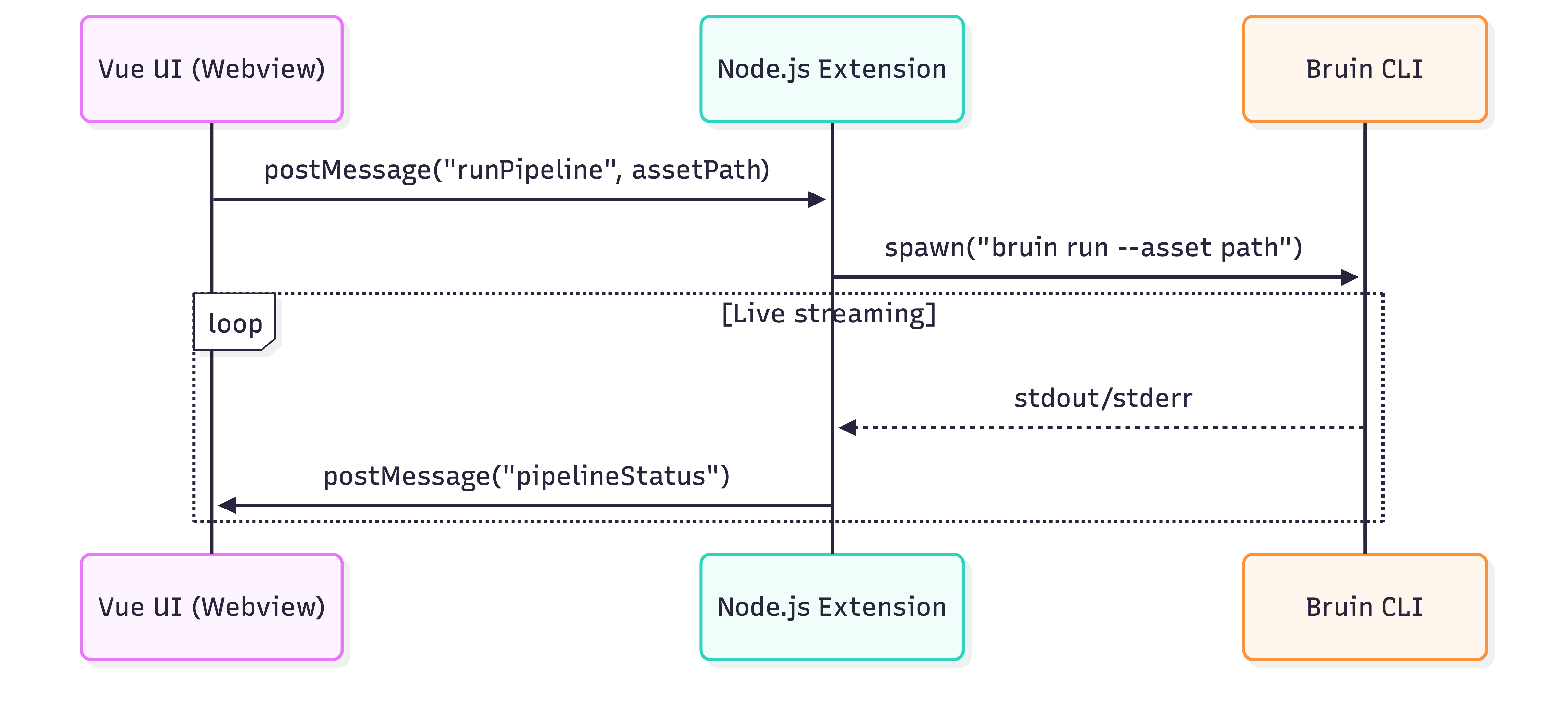
Challenge: Hot reloading during development requires careful setup.
Solution: We use Vite's dev server for the Vue app, but webviews need special handling. The extension serves built assets via webview.asWebviewUri(), so we run vite build --watch during development and manually refresh the webview panel. (more details in the next blog post)
# Development workflow
npm run dev:watch  # Runs TypeScript compiler + Vite watch mode concurrently
Challenge: Debugging webview messages requires understanding where logs appear in each context.
Solution: VS Code provides different debugging tools for each part:
Challenge: Large message payloads make the UI feel laggy, and sending messages when webviews aren't ready wastes resources.
Solution: Be mindful about when and how often you send messages:
webview.visible). Don't send until components are mounted and ready to receive dataChallenge: Webview state is lost when panels are hidden or recreated.
Solution: We use Pinia stores for reactive state, and VS Code's webview.getState() / setState() for persistence:
✗ Before: VS Code → Terminal → Browser → Terminal → Browser...
✅ After:  Everything happens inside VS Code
Data engineers can now:
Install from VS Code Marketplace
or from the Open VSX Marketplace
We are open to contributions! Please feel free to open an issue or a pull request.
GitHub Repository
Bruin CLI is an open-source data pipeline tool built with Go, with built-in data ingestion, transformation, and data quality checks.

Pull up your agents folks, I'll convince you why Go is the best language for them.

dbt only handles transformations, leaving you with a complex stack. Bruin provides end-to-end pipelines with data ingestion, SQL & Python transformations, quality checks, and built-in orchestration-all in one open-source tool.
Practical updates on open-source data pipelines, AI analysts, governance, and what we are shipping at Bruin.