Manage Connections
Configure connections in Bruin Cloud so your pipelines can reach data sources, destinations, and other external systems.
Video walkthrough
What this does
Connections are named configurations that let Bruin authenticate and talk to external systems - data sources, destinations, and any other platforms your pipelines depend on.
Locally, you define connections in your .bruin.yml file. That file should be gitignored since it can hold secrets and credentials. In Bruin Cloud, you configure the same connections through the UI - they need to match the names referenced in your pipelines, and they're encrypted at rest using HashiCorp Vault as the secrets backend.
Steps
1) Spot a missing connection
Open a pipeline. On the right-hand side you'll see the list of connections it uses. Anything missing is flagged so you know what to fix.
2) Open Connections
From Manage team, go to Connections and click New connection.
3) Pick the connection type
Select the type that matches your data platform - BigQuery, Postgres, Snowflake, and so on - or choose a generic secret for API keys, tokens, and other text-based credentials.
4) Match the name
The connection name must match the one referenced in your pipeline exactly. If they don't match, the pipeline will keep flagging the connection as missing.
5) Fill in the details
Enter the rest of the connection details. Each platform asks for different fields - access key, username and password, host, project ID, and so on.
6) Create and validate
Click Create. For most data platforms, Bruin Cloud validates the connection by running a SELECT 1 against the database. If you don't want that, choose Create without validation.
7) Confirm it's active
Go back to your pipeline. The connection should now appear in the right-hand list without the missing flag.
Next
With your connections in place, head to Enable a Pipeline to trigger your first run.
More tutorials

Create a Project
Connect a GitHub repo to Bruin Cloud, create your first project, and add the connections it needs.

Enable a Pipeline
Enable a pipeline in Bruin Cloud, add any missing connections, and trigger the first run.
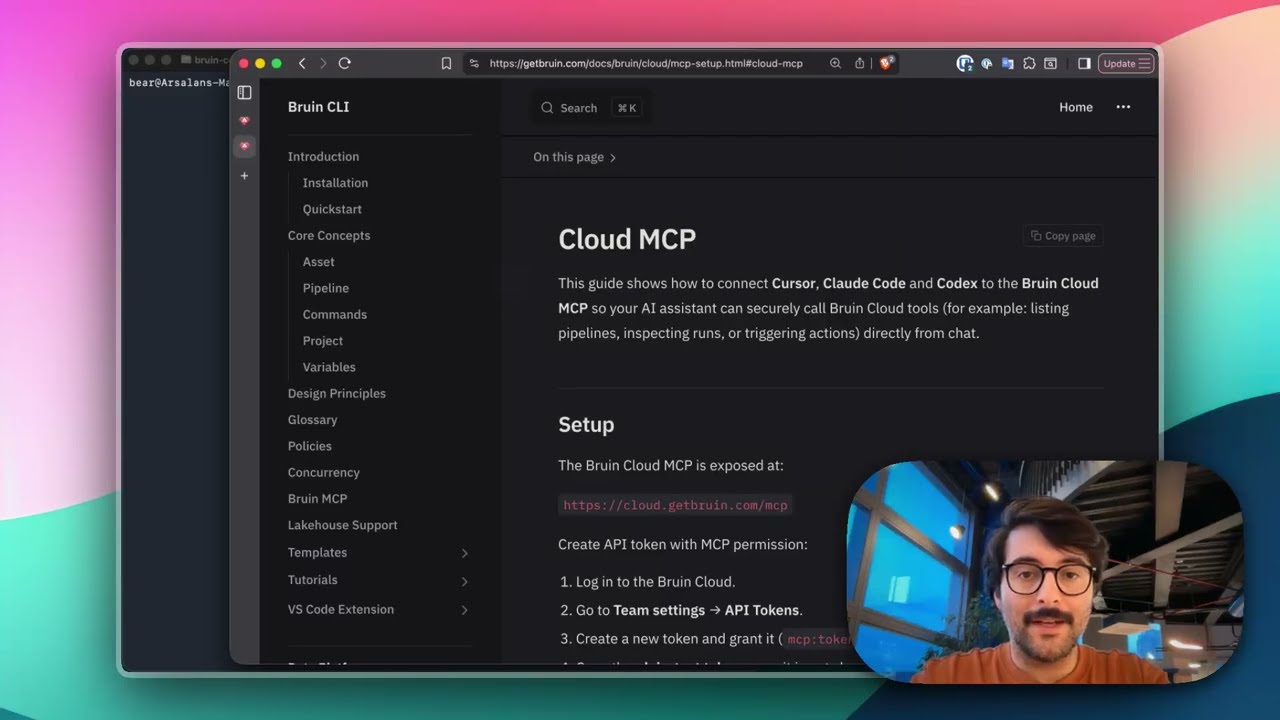
Connect Bruin Cloud MCP to Claude Code
Set up the Bruin Cloud MCP so your AI agent can query pipelines, inspect runs, and trigger actions in Bruin Cloud directly from your terminal.