Connect Bruin Cloud MCP to Claude Code
Set up the Bruin Cloud MCP so your AI agent can query pipelines, inspect runs, and trigger actions in Bruin Cloud directly from your terminal.
Overview
Goal - Connect the Bruin Cloud MCP to Claude Code so you can manage pipelines, inspect runs, and trigger actions using natural language from your terminal.
Audience - Data engineers who want to interact with Bruin Cloud programmatically through an AI agent.
Prerequisites
- Bruin CLI installed
- Claude Code installed
- A Bruin Cloud account with at least one pipeline deployed
Steps
1) Create an API token
- Go to Bruin Cloud and open Team Settings
- Navigate to Team Members and scroll to Create API Token
- Give the token a name and select the permissions you need
- Click Create and copy the token - it will only be shown once
2) Add the MCP to Claude Code
Run the following command in your terminal, replacing YOUR_TOKEN_HERE with the token you just created:
claude mcp add --transport http bruin_cloud https://cloud.getbruin.com/mcp \
  --header "Authorization: Bearer YOUR_TOKEN_HERE"
This configures Claude Code to communicate with Bruin Cloud via the MCP protocol.
3) Query your pipelines
Open Claude Code inside a Bruin project and ask questions like:
"Use Bruin Cloud MCP and tell me which pipelines are enabled."
The agent will make API calls to Bruin Cloud and return the information.
4) Trigger runs
You can also ask the agent to trigger pipeline runs:
"Create a full refresh of the stock_market_prices asset."
The agent may ask for confirmation before executing, especially when there are similarly named assets. It will also provide a link to monitor the run in Bruin Cloud.
5) Be careful with prompts
Be specific when triggering actions. A vague prompt like "do a full refresh" could create a large backfill job spanning months of data. Always specify:
- Which asset or pipeline to run
- The date range if applicable
- Whether you want a full refresh or incremental run
Key takeaways
- The Cloud MCP lets you query pipeline status, inspect runs, and trigger actions from your terminal
- Always be specific when triggering runs to avoid unintended large backfills
- The agent will ask for confirmation before executing destructive or ambiguous actions
Helpful links
More tutorials
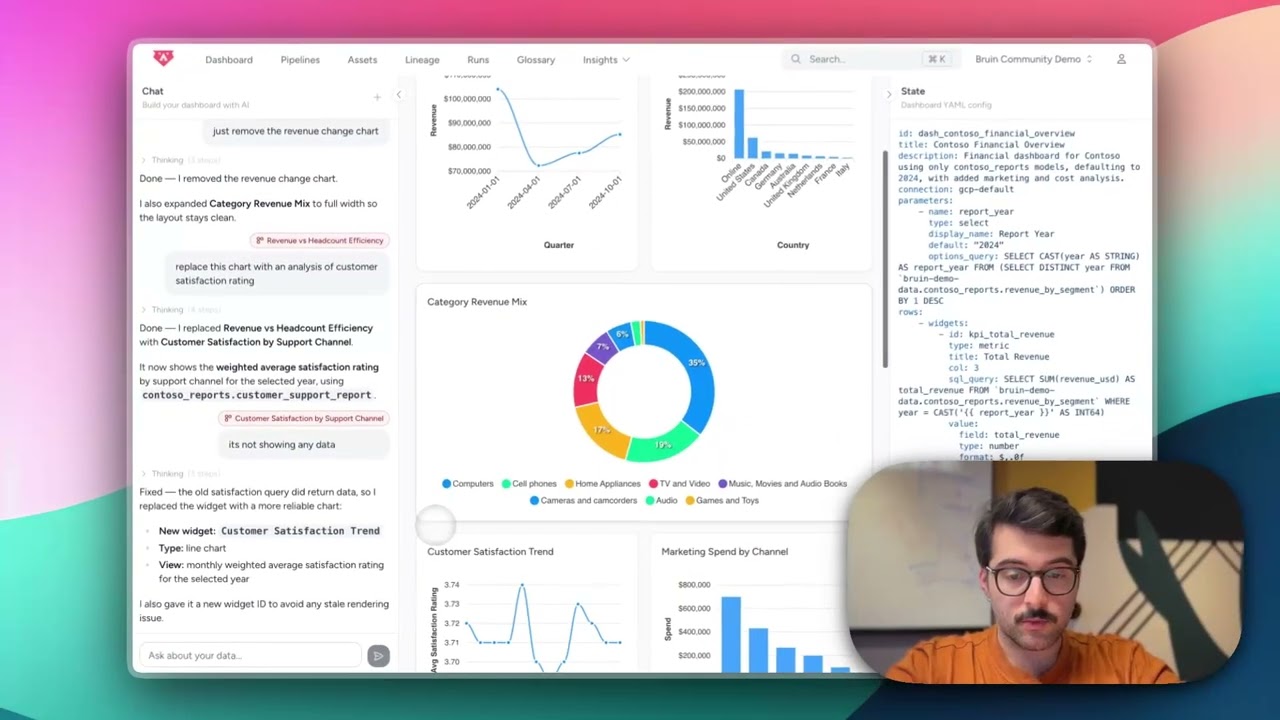
Build Dashboards with an AI Agent
Use the Bruin Cloud AI agent to build interactive dashboards from natural language prompts - generate queries, create charts, and ask follow-up questions in one place.
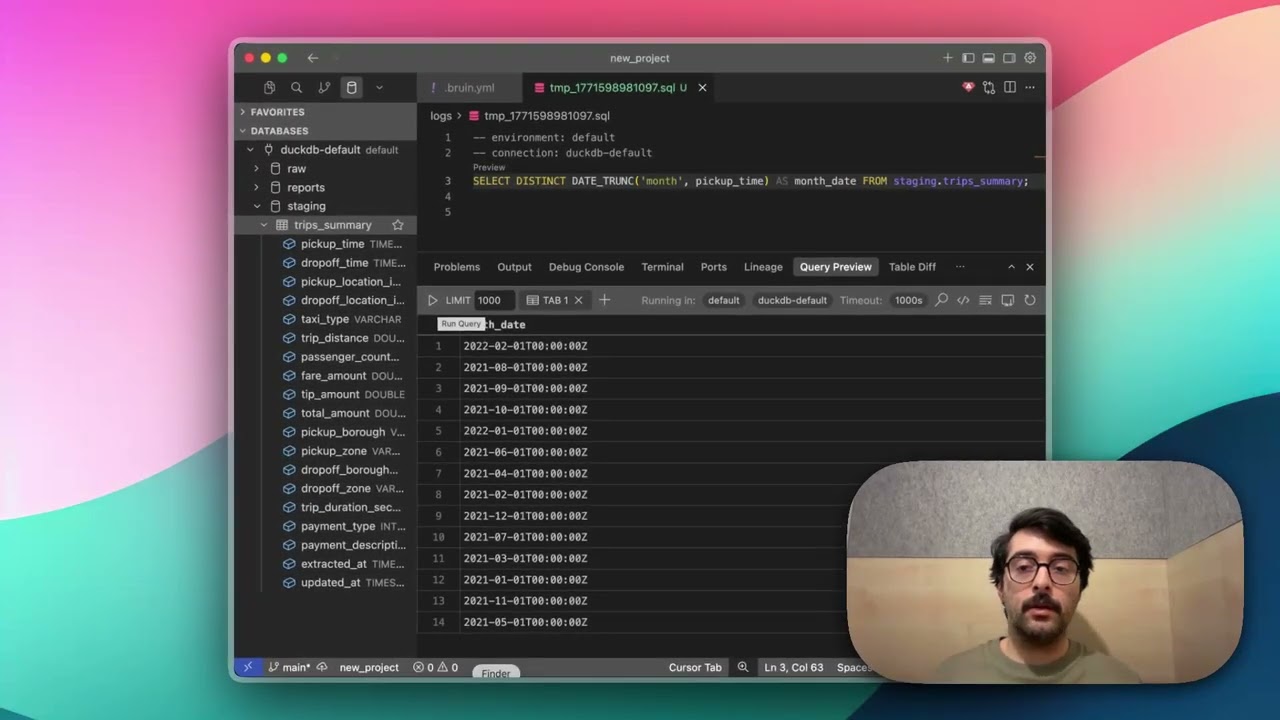
Query Databases from Your IDE
Use the Bruin extension's built-in database viewer to browse tables, view schemas, and run queries across all your connections without leaving VS Code.
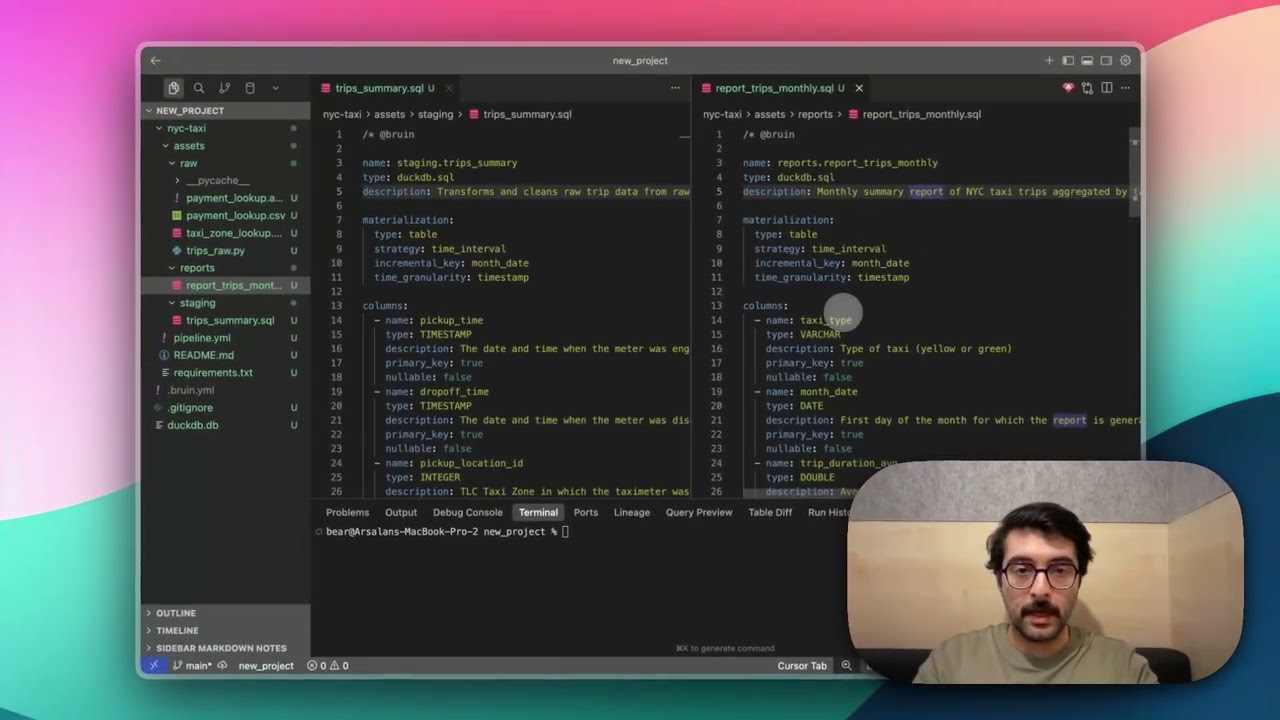
Auto-Generate Asset Dependencies
Use bruin patch fill-asset-dependencies to automatically detect and generate dependencies from your SQL queries - no manual declaration needed.