Query Databases from Your IDE
Use the Bruin extension's built-in database viewer to browse tables, view schemas, and run queries across all your connections without leaving VS Code.
Overview
Goal - Browse and query all your databases directly from VS Code or Cursor using the Bruin extension's built-in database viewer.
Audience - Data analysts and engineers who want to explore data without switching between multiple tools like BigQuery UI, DataGrip, or DBeaver.
Prerequisites
- Bruin CLI installed
- The Bruin VS Code or Cursor extension installed
- A Bruin project with database connections configured in
.bruin.yml
Steps
1) Open the database viewer
Look for the database icon in the VS Code sidebar. Under Databases, you'll see all the connections defined in your .bruin.yml file - DuckDB, BigQuery, Redshift, Postgres, or any other configured connection.
2) Browse your tables
Expand a connection to see its datasets and tables. You can also view the schema (columns and types) for each table.
3) Query a table
Click on any table to open a temporary file with a pre-filled SELECT query. Run it to see the results directly in your editor.
You can modify the query, add filters, joins, or aggregations - and run it again.
4) Switch between databases
If you have multiple database connections (e.g., DuckDB for local development and BigQuery for production), you can quickly switch between them without reconfiguring credentials or opening different tools. Everything uses the connections already defined in your .bruin.yml.
Why this is useful
- No need to switch between VS Code, BigQuery UI, DataGrip, DBeaver, or other query tools
- All your credentials are already in
.bruin.yml- no extra configuration - Quick navigation between multiple databases in one interface
- Speeds up development by keeping everything in one place
Helpful links
More tutorials
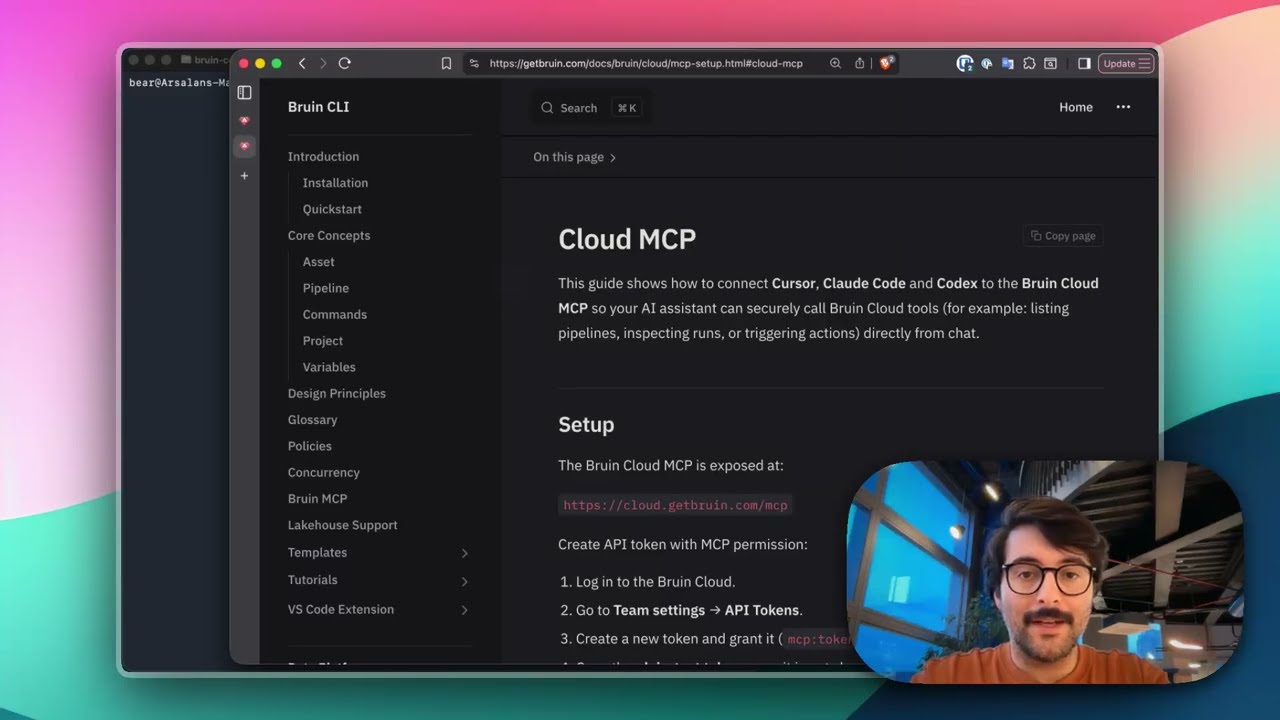
Connect Bruin Cloud MCP to Claude Code
Set up the Bruin Cloud MCP so your AI agent can query pipelines, inspect runs, and trigger actions in Bruin Cloud directly from your terminal.
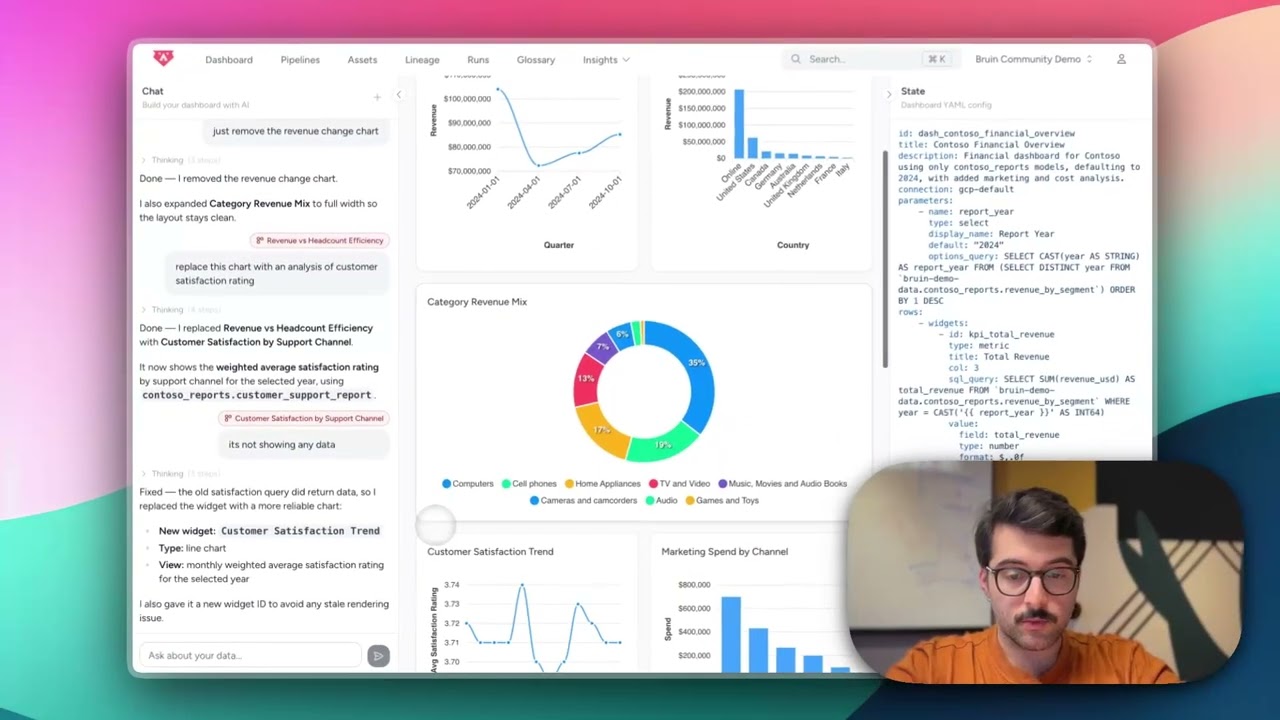
Build Dashboards with an AI Agent
Use the Bruin Cloud AI agent to build interactive dashboards from natural language prompts - generate queries, create charts, and ask follow-up questions in one place.
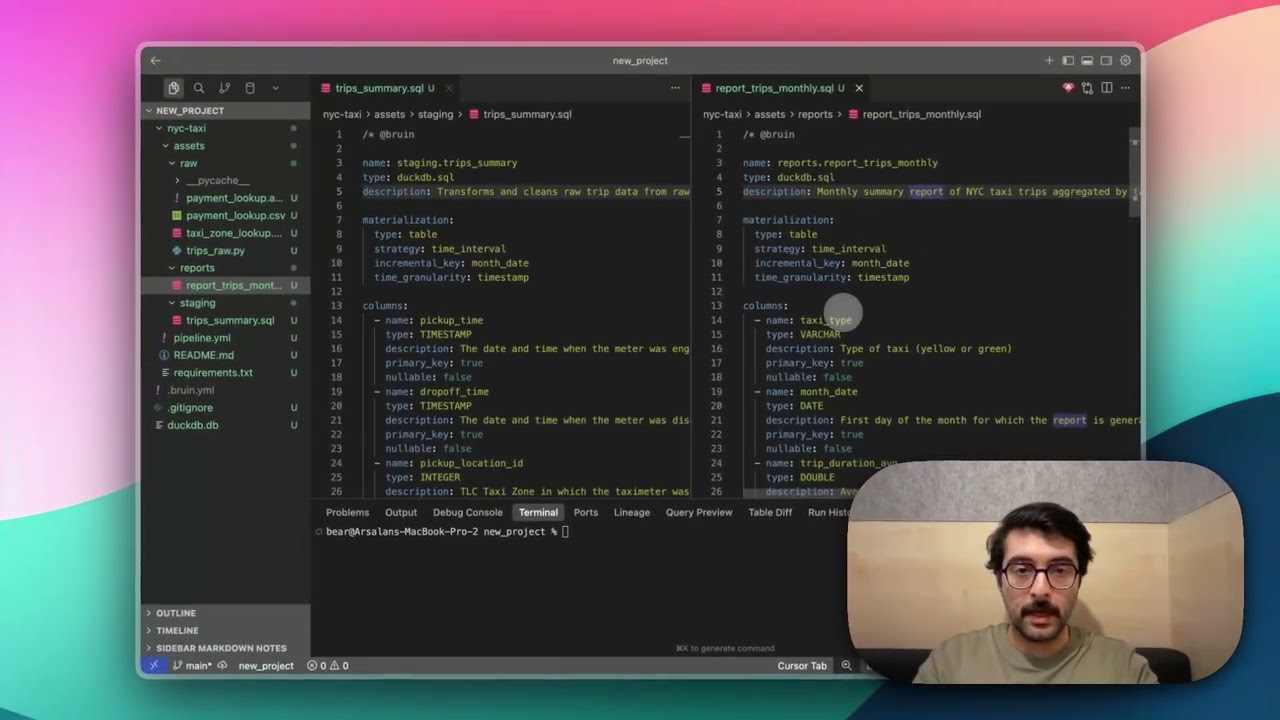
Auto-Generate Asset Dependencies
Use bruin patch fill-asset-dependencies to automatically detect and generate dependencies from your SQL queries - no manual declaration needed.