Auto-Generate Column Schema from Your Database
Use the Bruin extension to automatically pull column names and data types from your database into your asset definitions - no manual entry needed.
Overview
Goal - Automatically generate and maintain column metadata for your assets by pulling schema information directly from the destination database.
Audience - Data engineers who want to keep their asset metadata in sync with the actual database schema without manual updates.
Prerequisites
- Bruin CLI installed
- The Bruin VS Code or Cursor extension installed
- An asset that has been materialized in the destination database
Steps
1) Open the render panel
Open an asset in your editor and navigate to the Bruin render panel. Go to the Columns section.
2) Fill columns from the database
If you haven't defined any columns yet, click Fill from DB. Bruin will connect to your destination database, read the table schema, and populate the column names and data types automatically.
This saves you from manually looking up data types and typing out every column definition.
3) Update existing schema
If your asset already has columns defined but the table schema has changed (new columns added or removed), click Fill from DB again. It will add any new columns that are missing from your definition without overwriting existing ones.
4) Add descriptions
The fill-from-DB feature populates column names and data types but not descriptions. You can add descriptions manually or use an AI agent to generate them if it has enough context about your data.
5) Use the CLI alternative
You can also run this from the terminal:
bruin patch fill-columns-from-db path/to/asset.sql
Existing column metadata is preserved - only new columns are added. Column names are compared case-insensitively to prevent duplicates.
Key takeaways
- Fill from DB eliminates manual schema entry and keeps your metadata in sync
- It only adds new columns - existing metadata is preserved
- Use this alongside
bruin ai enhanceto generate descriptions automatically
Helpful links
More tutorials
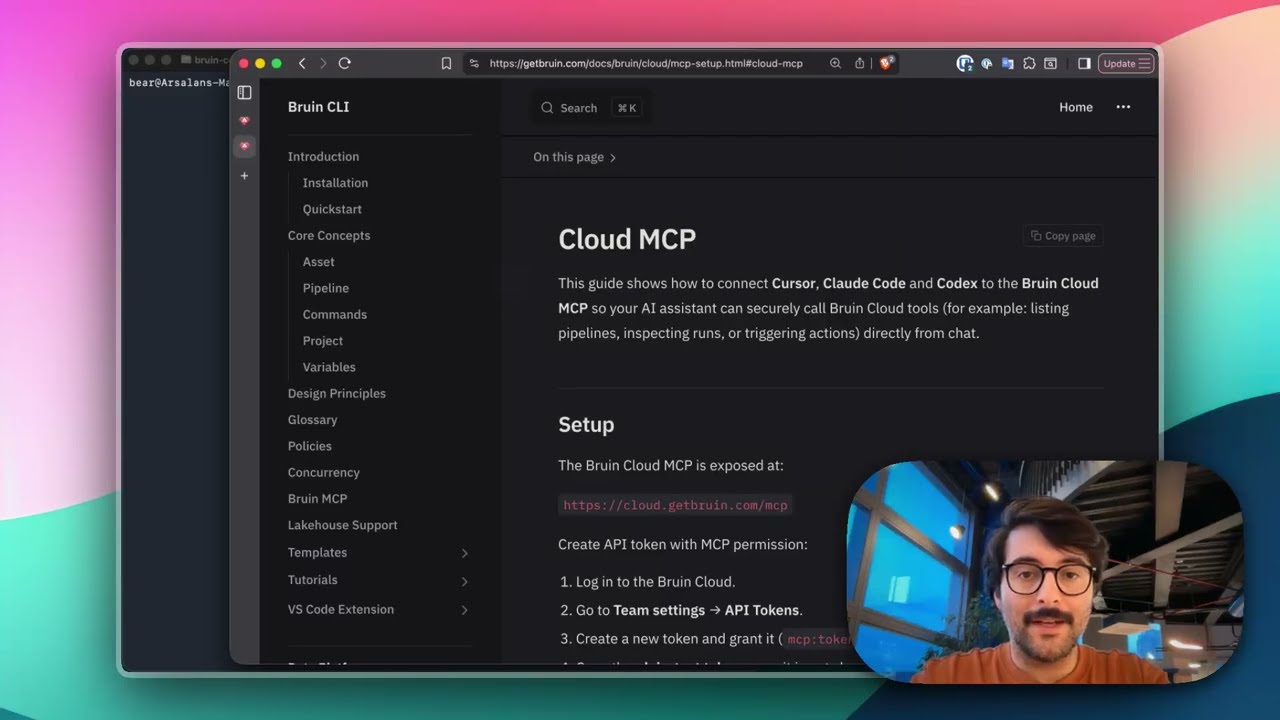
Connect Bruin Cloud MCP to Claude Code
Set up the Bruin Cloud MCP so your AI agent can query pipelines, inspect runs, and trigger actions in Bruin Cloud directly from your terminal.
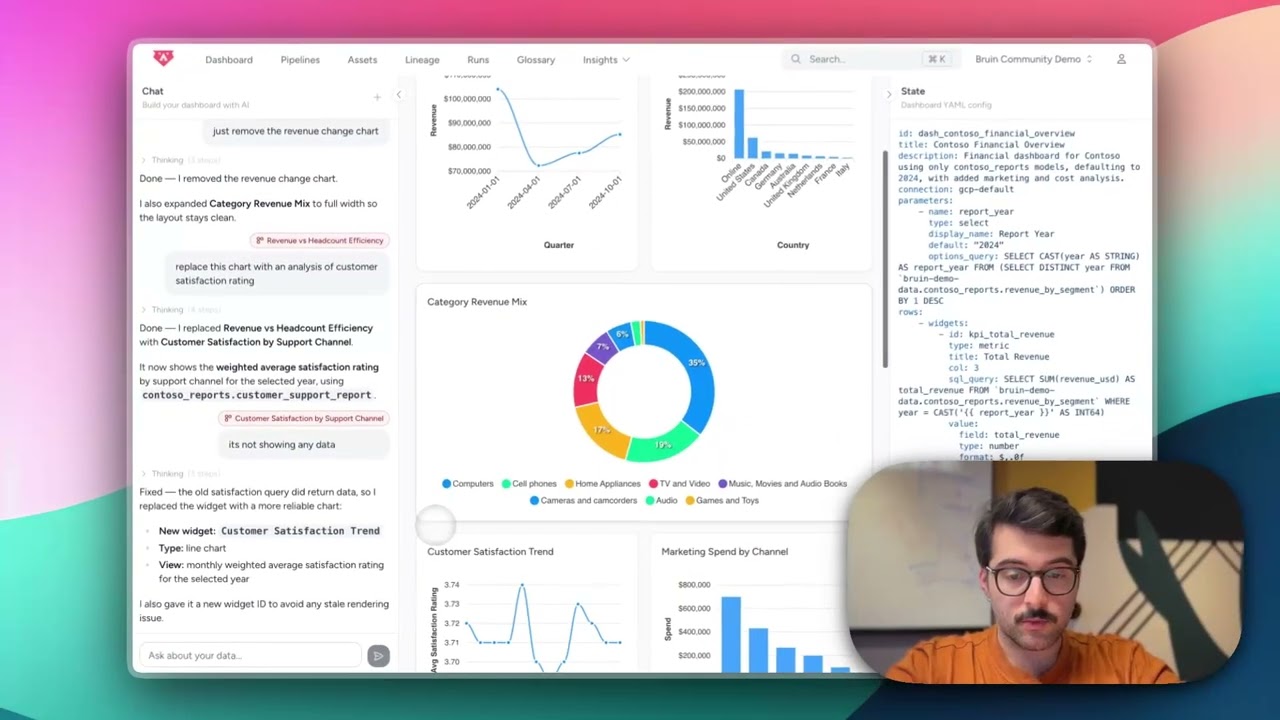
Build Dashboards with an AI Agent
Use the Bruin Cloud AI agent to build interactive dashboards from natural language prompts - generate queries, create charts, and ask follow-up questions in one place.
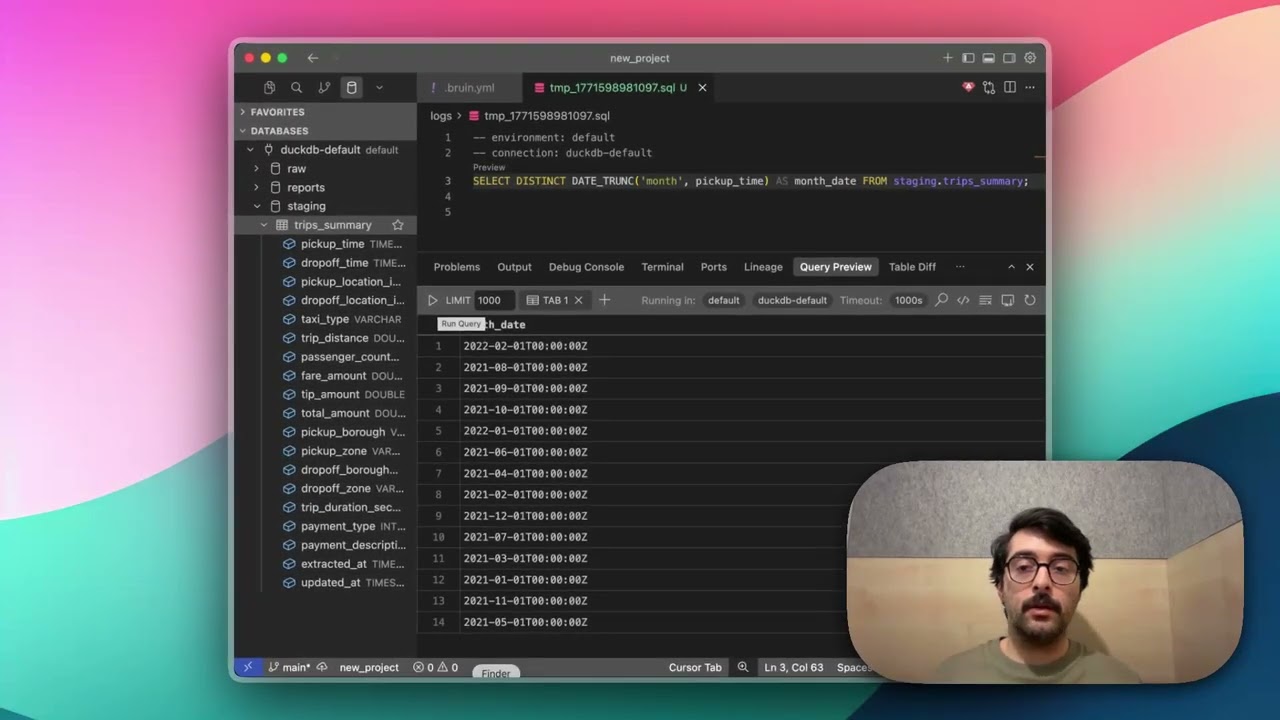
Query Databases from Your IDE
Use the Bruin extension's built-in database viewer to browse tables, view schemas, and run queries across all your connections without leaving VS Code.