Run Multiple Specific Assets
Select exactly which assets to run using the Bruin VS Code extension - pick individual assets, include downstream dependencies, and create targeted runs.
Overview
Goal - Create targeted pipeline runs that only execute specific assets instead of running the entire pipeline.
Audience - Data engineers working with large pipelines who need to run or refresh only a subset of assets.
Prerequisites
- Bruin CLI installed
- The Bruin VS Code or Cursor extension installed
- A pipeline with multiple assets
Steps
1) Open the multi-asset run selector
Open any asset in your editor, then open the Bruin render panel. Click the dropdown next to the Run button and select Run Multiple Assets.
2) Select your assets
A list of all assets in your pipeline will appear. Check the ones you want to include in this run.
3) Include downstream dependencies (optional)
For any selected asset, you can choose:
- Direct downstream - Includes only assets with a direct dependency on the selected asset
- All downstream - Includes all assets downstream in the dependency chain
4) Apply and run
Click Apply to confirm your selection, then hit Run. You can also choose to do a full refresh on just the selected assets.
Only the assets you selected will execute - everything else is skipped.
When to use this
- You need to refresh specific tables after a data fix
- You're developing a new asset and want to test it with its immediate dependencies
- A full pipeline run is too slow and you only need a subset
- You want to do a full refresh on specific assets without affecting the rest
CLI alternative
From the terminal, use the --selector flag for similar functionality:
# Run a specific asset and all its downstream dependencies
bruin run --selector "+my_asset"

# Run assets with a specific tag
bruin run --tag my_tag

# Run with downstream
bruin run --downstream path/to/asset.sql
Helpful links
More tutorials
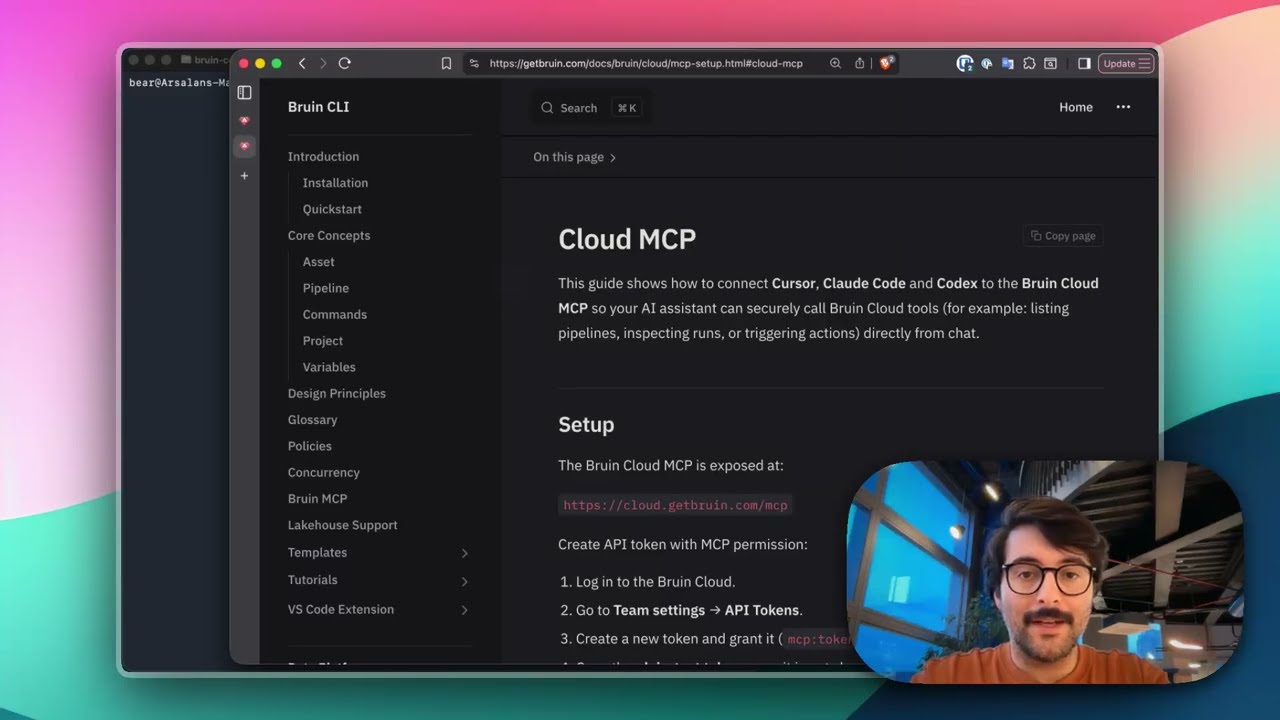
Connect Bruin Cloud MCP to Claude Code
Set up the Bruin Cloud MCP so your AI agent can query pipelines, inspect runs, and trigger actions in Bruin Cloud directly from your terminal.
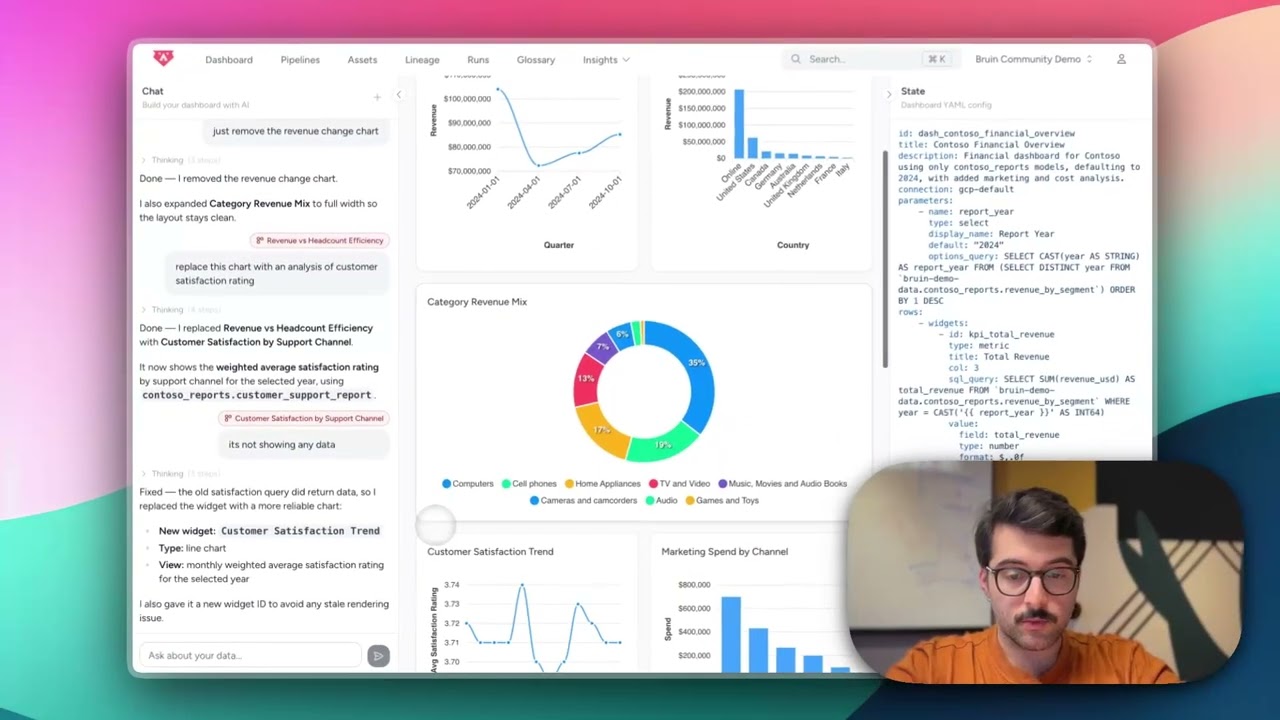
Build Dashboards with an AI Agent
Use the Bruin Cloud AI agent to build interactive dashboards from natural language prompts - generate queries, create charts, and ask follow-up questions in one place.
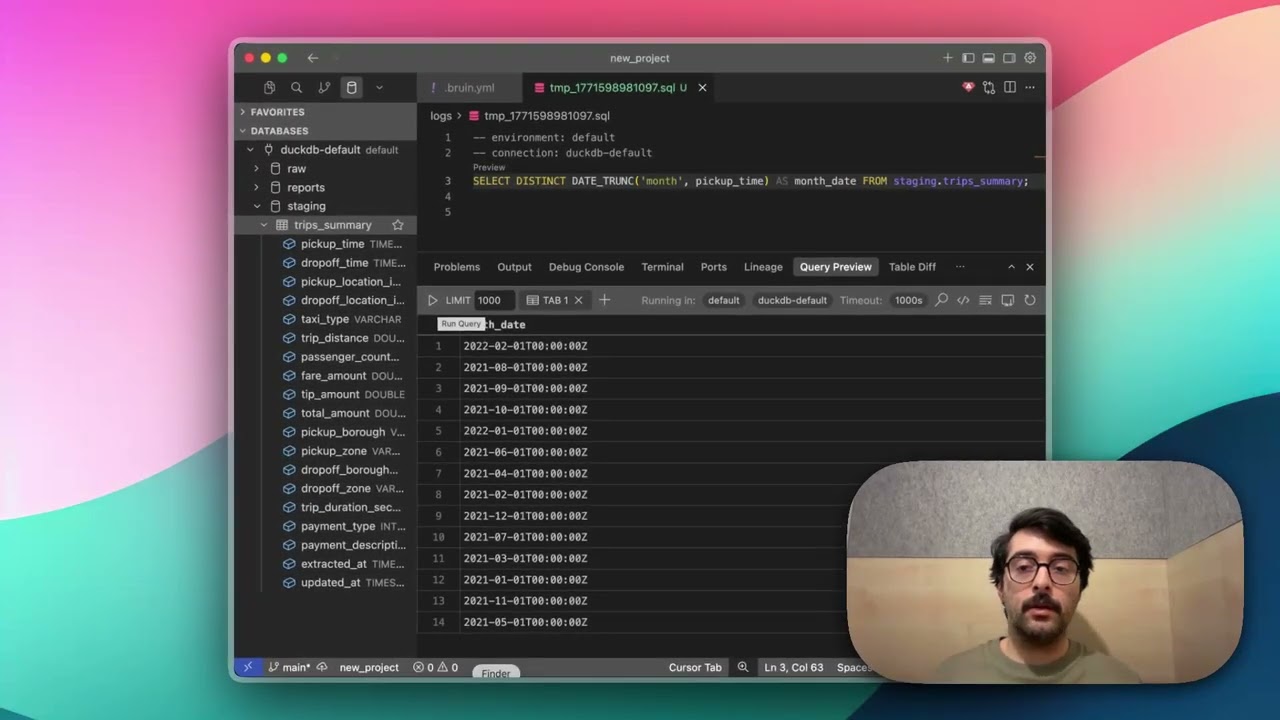
Query Databases from Your IDE
Use the Bruin extension's built-in database viewer to browse tables, view schemas, and run queries across all your connections without leaving VS Code.