Understand Materialization with Render
Use bruin render to see how materialization transforms your SQL queries at runtime - from append inserts to full refresh table recreation.
Overview
Goal - Understand how Bruin's materialization strategies transform your queries at runtime by using the bruin render command and the render panel in VS Code.
Audience - Data engineers who want to understand what SQL Bruin actually executes behind the scenes.
Prerequisites
- Bruin CLI installed
- A Bruin project with SQL and/or Python assets
How materialization works
When you write a SQL asset in Bruin, you write a SELECT query. Bruin wraps that query with the appropriate materialization logic at runtime based on your configuration.
Python assets
Python materialized assets use a materialize function that returns a DataFrame. Bruin takes that DataFrame and inserts it into the destination table. On the first run, Bruin creates the table automatically.
SQL assets
SQL assets are different - Bruin parses your SELECT query and wraps it with the materialization logic. Your query never includes INSERT INTO or CREATE TABLE statements directly.
Steps
1) Render from the terminal
Use the bruin render command to see the compiled SQL:
bruin render path/to/asset.sql
For an asset with strategy: append, the rendered output will show your query wrapped with an INSERT INTO statement.
2) Use the render panel in VS Code
Open an asset in the editor and open the Bruin Render panel. This shows the compiled query in real-time as you edit, which is easier than running the CLI repeatedly.
3) Compare append vs full refresh
With the default append strategy, the rendered query includes INSERT INTO. Switch to a full refresh run and the rendered query changes to:
BEGINa transactionDROP TABLE IF EXISTSCREATE TABLEwith the results of your queryCOMMIT
This is useful when you want to reset a table or are running it for the first time.
4) Create the table for the first time
For a new asset where the destination table doesn't exist yet, you have two options:
- Full refresh run - Creates the table automatically by running the drop + create sequence
- Copy the DDL - Copy the DDL script from the render panel and run it manually in your database
5) Push metadata
When you do a full refresh, the table is recreated but column descriptions and table descriptions are not pushed to the database by default. Use the push metadata option to send this metadata to the destination:
bruin run --push-metadata
Materialization strategies
| Strategy | Behavior |
|---|---|
append | Insert new rows, never overwrite |
delete+insert | Delete matching rows by incremental_key, then insert |
merge | Update existing rows by primary key, insert new ones |
create+replace | Full refresh every execution |
time_interval | Process data within specific time windows (SQL only) |
Helpful links
More tutorials
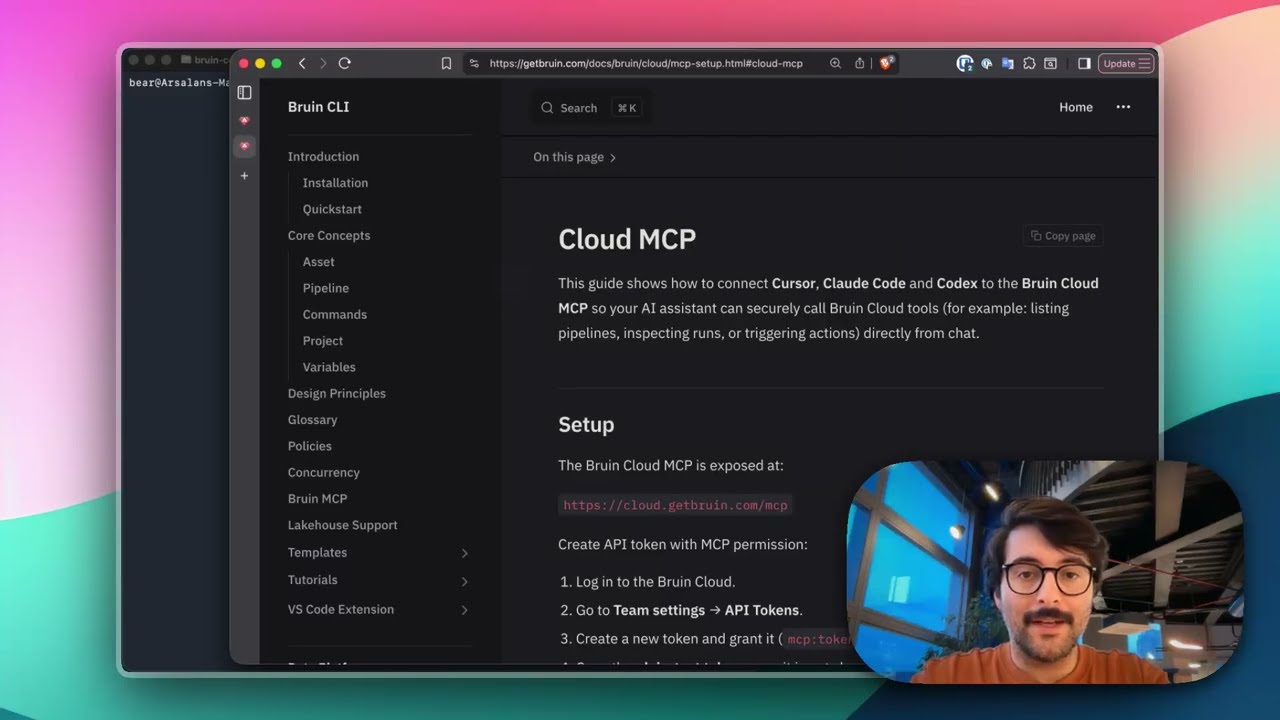
Connect Bruin Cloud MCP to Claude Code
Set up the Bruin Cloud MCP so your AI agent can query pipelines, inspect runs, and trigger actions in Bruin Cloud directly from your terminal.
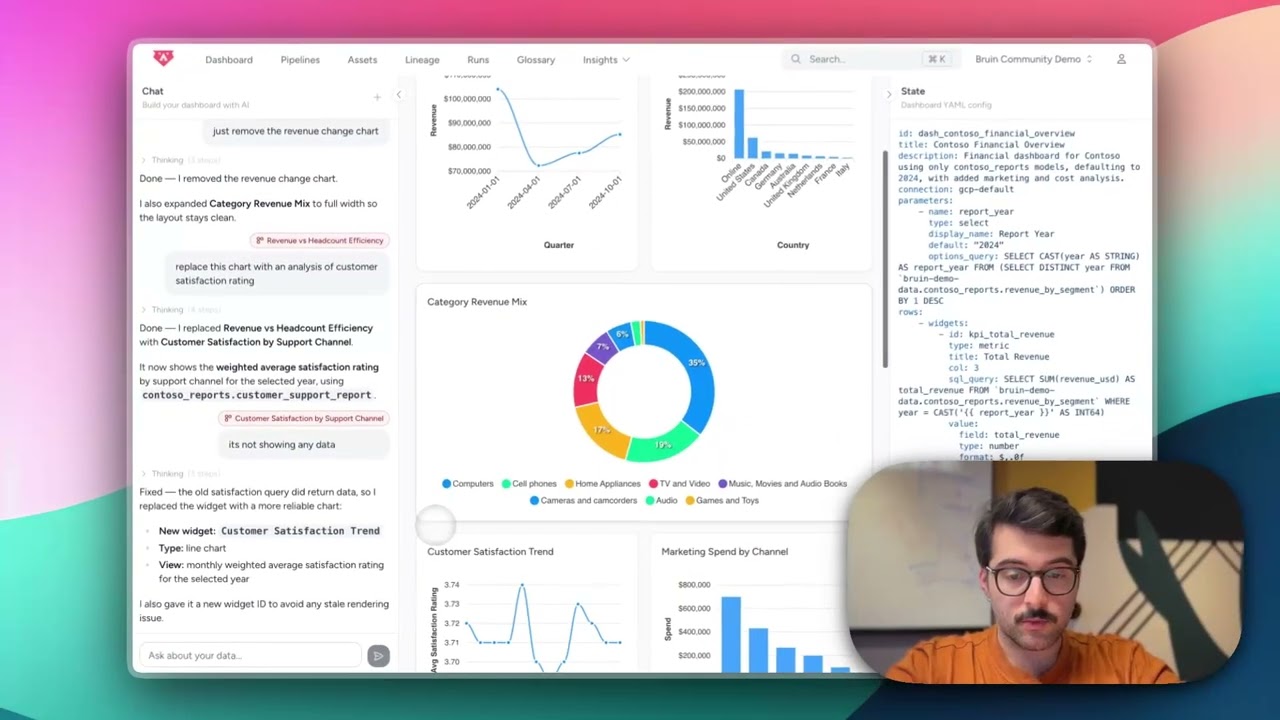
Build Dashboards with an AI Agent
Use the Bruin Cloud AI agent to build interactive dashboards from natural language prompts - generate queries, create charts, and ask follow-up questions in one place.
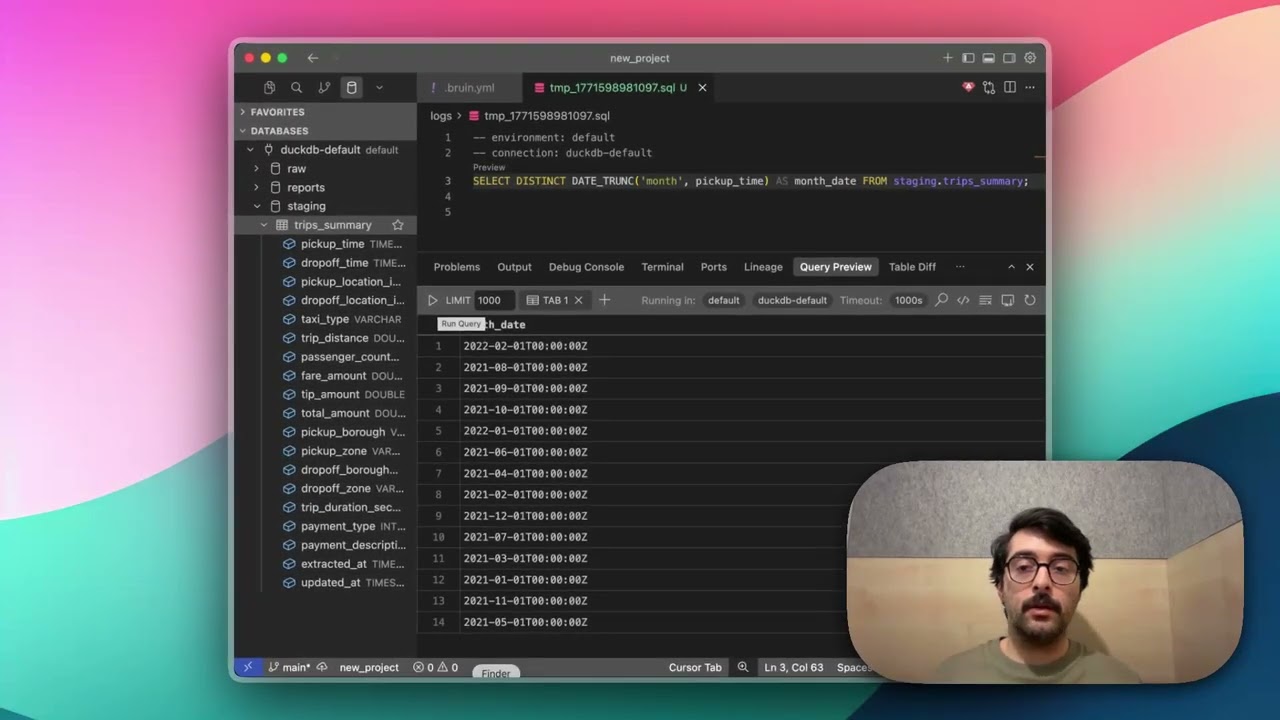
Query Databases from Your IDE
Use the Bruin extension's built-in database viewer to browse tables, view schemas, and run queries across all your connections without leaving VS Code.