Navigate Your Run History
Use the Bruin VS Code extension to browse past runs, see which assets succeeded or failed, copy commands, and re-run previous executions.
Overview
Goal - Use the run history panel in the Bruin VS Code extension to review past runs, debug failures, and re-execute previous commands.
Audience - Anyone using the Bruin VS Code/Cursor extension who wants to track and manage their pipeline runs.
Prerequisites
- Bruin CLI installed
- The Bruin VS Code or Cursor extension installed
- At least one pipeline with previous runs
Steps
1) Open the run history panel
In VS Code or Cursor, open your pipeline and look for the Run History tab next to the terminal. This shows a log of all your past runs.
2) Inspect a specific run
Click on any run to see the details:
- Which assets ran successfully
- Which assets were skipped
- Which assets failed and why
3) Copy the command
Click the copy command button on any run to get the exact CLI command that was used. This is especially useful for custom runs with specific flags or date ranges.
4) Re-run a previous execution
Click the re-run button to start a new execution with the same configuration as the selected run. This saves you from having to manually reconstruct complex run commands.
Key takeaways
- The run history panel gives you full visibility into past pipeline executions
- You can copy the exact command from any run, which is useful for debugging or sharing with teammates
- Re-running a previous execution is one click away
Helpful links
More tutorials
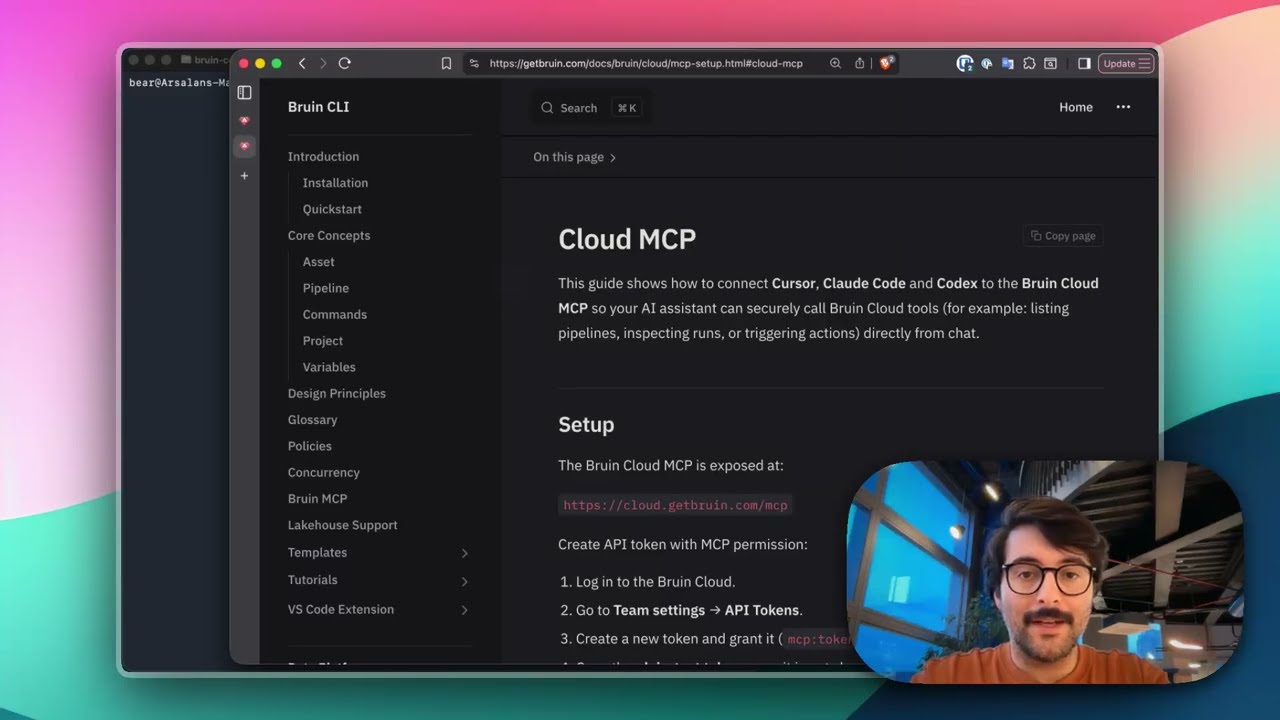
Connect Bruin Cloud MCP to Claude Code
Set up the Bruin Cloud MCP so your AI agent can query pipelines, inspect runs, and trigger actions in Bruin Cloud directly from your terminal.
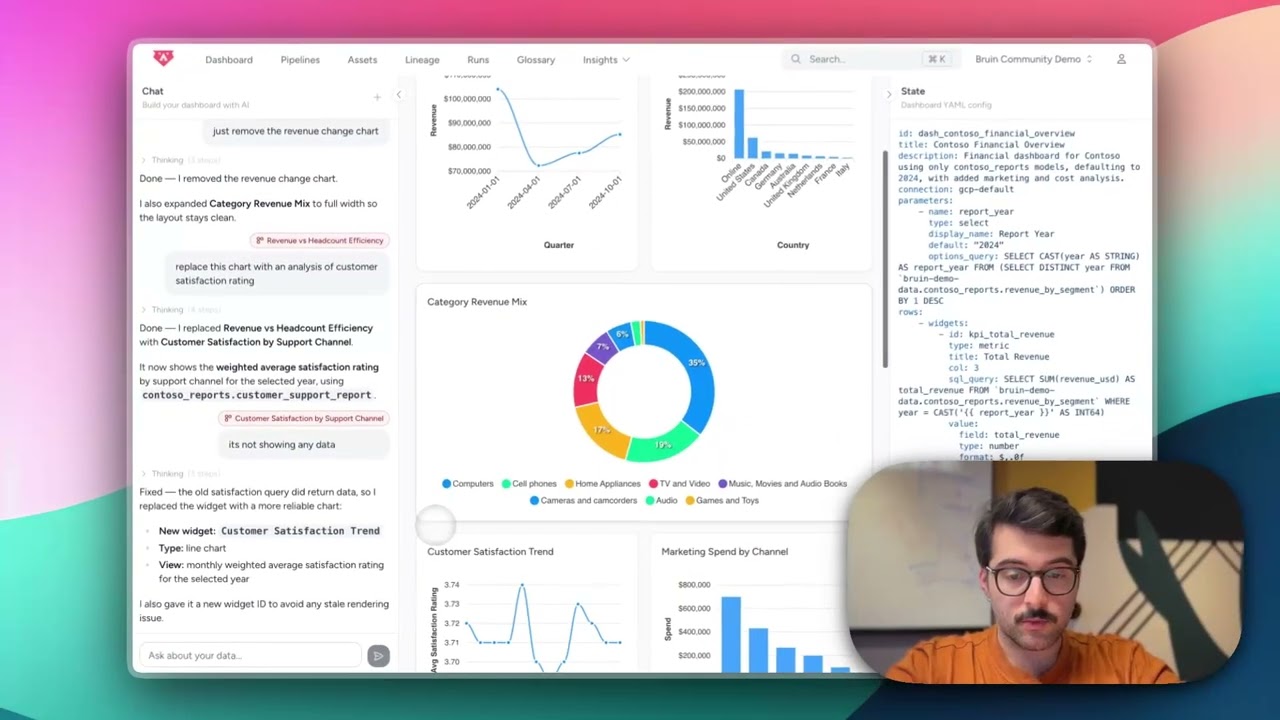
Build Dashboards with an AI Agent
Use the Bruin Cloud AI agent to build interactive dashboards from natural language prompts - generate queries, create charts, and ask follow-up questions in one place.
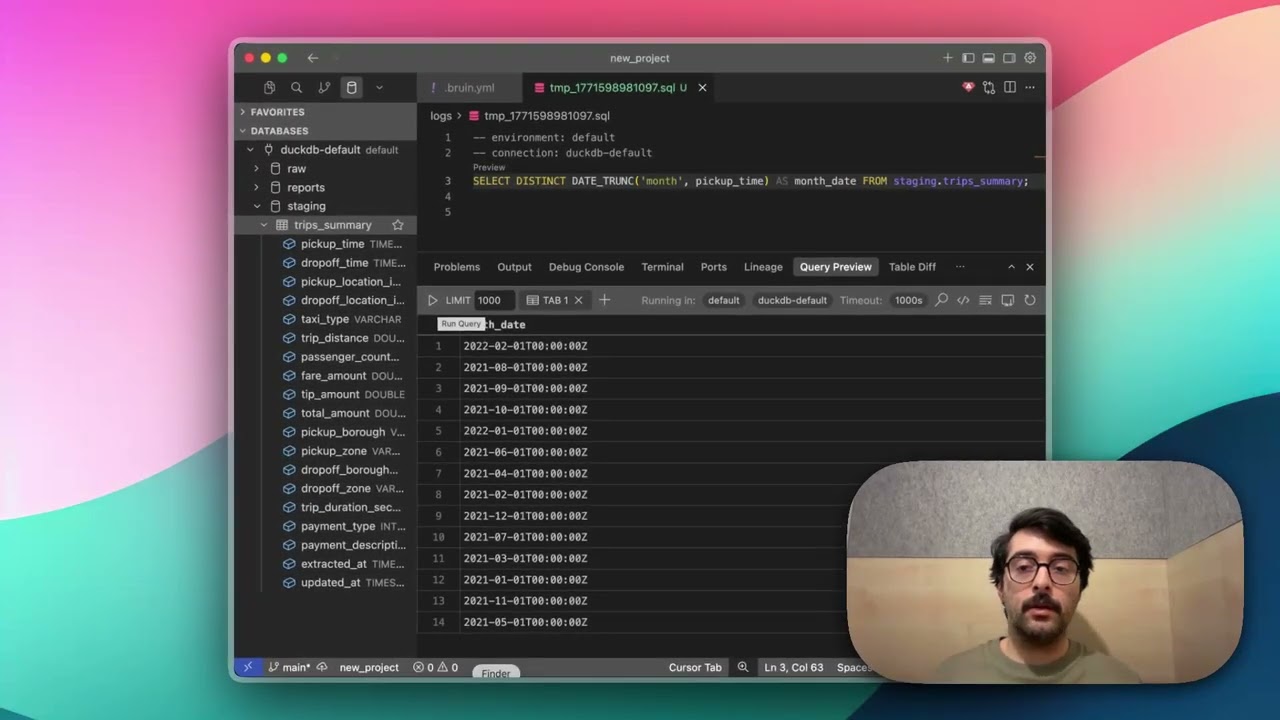
Query Databases from Your IDE
Use the Bruin extension's built-in database viewer to browse tables, view schemas, and run queries across all your connections without leaving VS Code.