Pipelines Overview
A walkthrough of the Bruin Cloud pipeline page: runs, assets, backfills, lineage, connections, and manual runs.
Video walkthrough
What this page is
The pipeline page is where you operate a single pipeline. Runs, assets, backfills, lineage, and manual actions all live here.
Open a pipeline
Two ways from the Overview page:
- Click a pipeline in the left sidebar.
- Open Catalogs → Pipelines and pick one.
Runs
The bottom panel lists previous runs. You can:
- Filter by status.
- Mark a run as successful or failed.
- Rerun all assets, or rerun only failed jobs.
Assets
The Assets tab lists every asset in the pipeline with its type, owner, schedule, and last run state.
Backfills
The Backfills tab shows every backfill that's been created. Click one to see the intervals, the jobs, the date range, status, and a progress bar.
Lineage
The lineage panel shows how assets connect. Click any asset to jump to it. Expand to full screen for larger pipelines.
Pipeline details
The right panel shows:
- Name, schedule, start date, owner
- Last commit from the connected repo
- Run durations - recent runs at a glance, so failures stand out
- Connections used by this pipeline
- Activity - a log of manual actions taken by users
New run
The New run button (top right) triggers a manual run. Options:
- Toggle full refresh.
- Add notes and tags - they show up in the activity log.
- Run a single interval, or create multiple jobs across intervals.
Backfills
- Auto split by schedule - one job per scheduled interval. A 23-day range on a daily schedule produces 23 jobs.
- Manual split - pick the interval and the number of splits. Useful for processing data in chunks.
Status
- Next run sits next to the New run button. Hover for local, UTC, and ISO time.
- The pipeline's status and timestamp (UTC) are at the top.
Pipeline menu
The menu (top right) lets you disable or delete the pipeline.
Next
Now that you know the page, learn how to enable a pipeline so it runs on schedule.
More tutorials

Enable a Pipeline
Enable a pipeline in Bruin Cloud, add any missing connections, and trigger the first run.
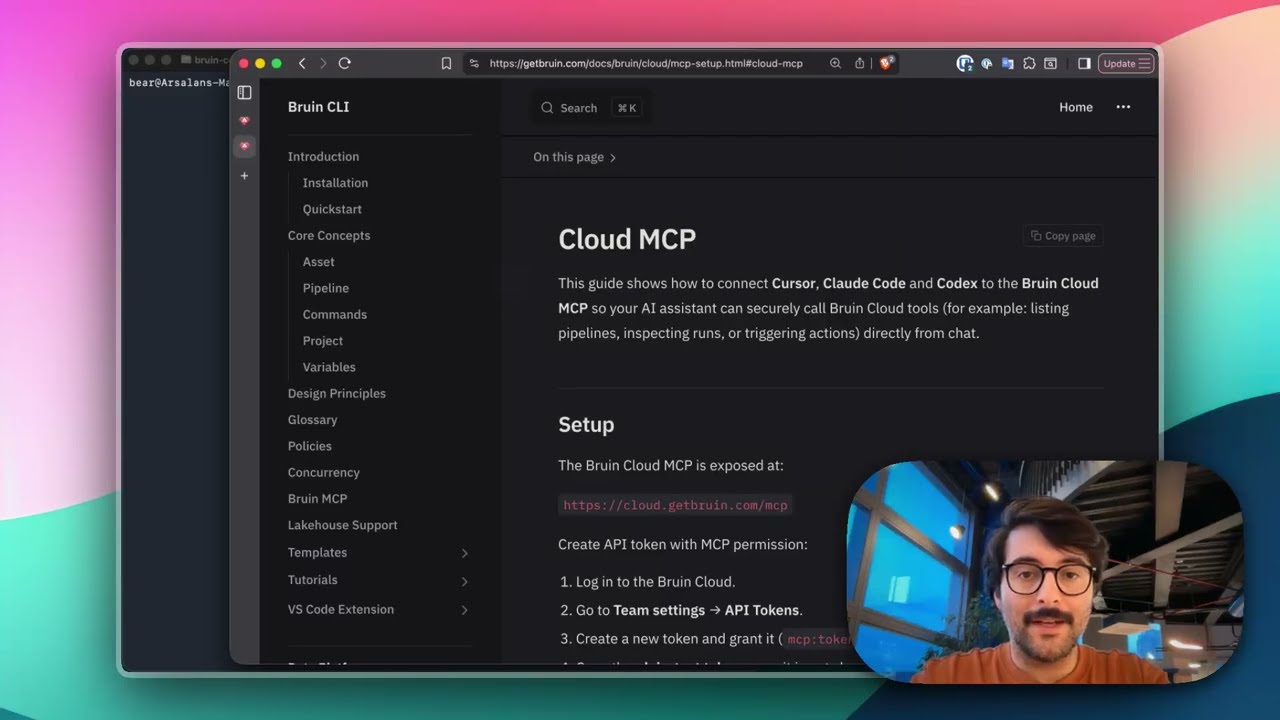
Connect Bruin Cloud MCP to Claude Code
Set up the Bruin Cloud MCP so your AI agent can query pipelines, inspect runs, and trigger actions in Bruin Cloud directly from your terminal.
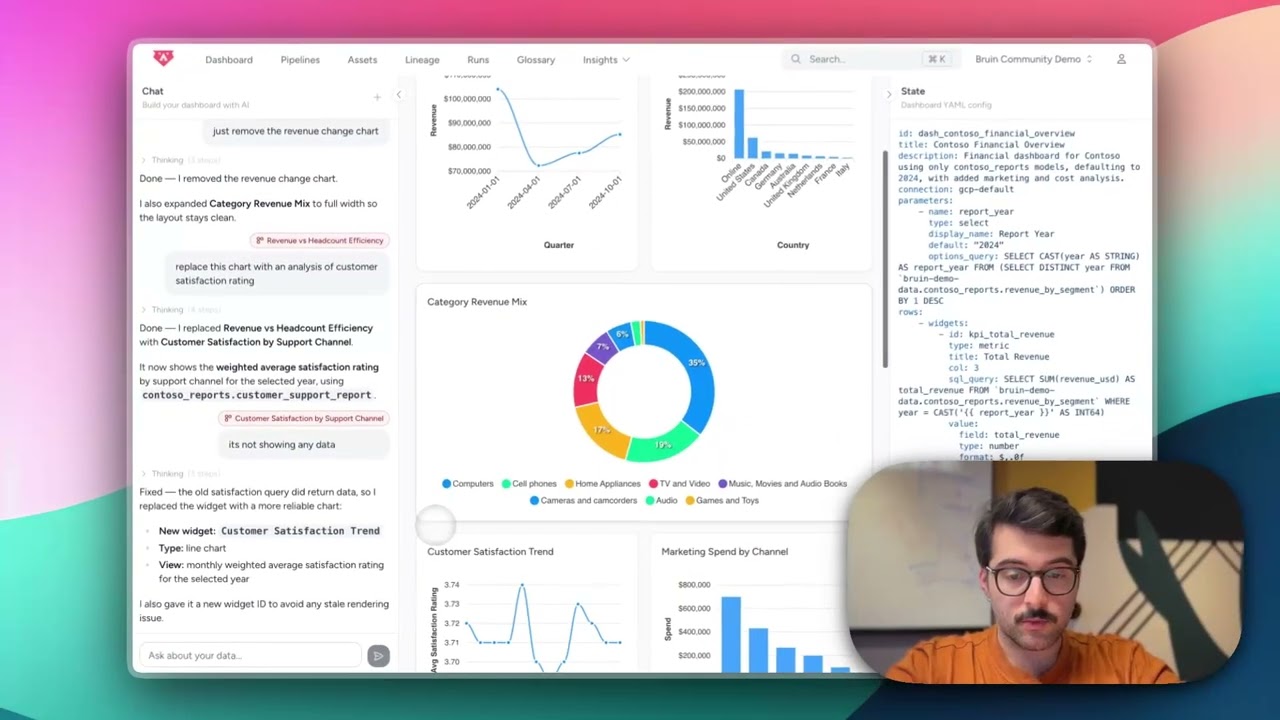
Build Dashboards with an AI Agent
Use the Bruin Cloud AI agent to build interactive dashboards from natural language prompts - generate queries, create charts, and ask follow-up questions in one place.