Connect Your Data
Add your data warehouse as a connection so Bruin can reach your tables and the AI agent can query them.
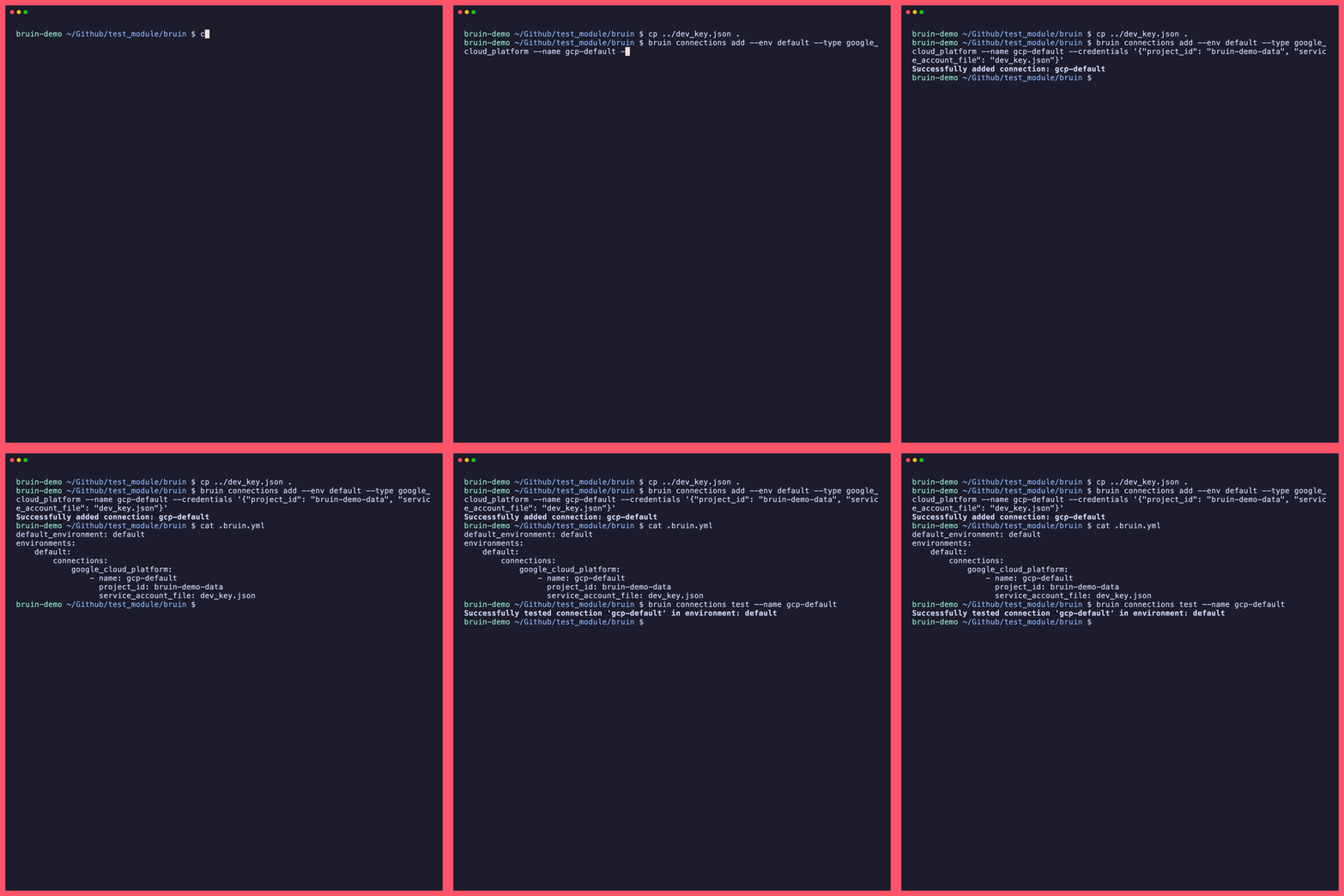
What you'll do
Add a connection to your data warehouse using the Bruin CLI, then verify it works with a quick test command.
Why this step matters
A Bruin project on its own doesn't know where your data lives. Connections are what bridge the gap — they tell Bruin (and by extension, your AI agent) how to reach your warehouse, with what credentials, and under what constraints.
Once a connection is configured, every downstream step — importing metadata, running quality checks, querying data — uses it automatically. You set it up once and everything else just works.
Choose your warehouse
Pick the tab that matches your setup. The overall flow is the same: add the connection, give it a name, and test it.
BigQuery
There are two authentication methods. Choose the one that matches your setup:
Option A: Application Default Credentials (personal account)
Best for local development using your personal Google account.
1. Authenticate with Google Cloud
gcloud auth application-default login
This opens a browser for Google sign-in. Once complete, a credential token is saved locally that Bruin will use automatically.
2. Add the connection
bruin connections add
The interactive wizard walks you through each field:
- Environment: Pick which environment to add the connection to. The default is
default, but your project may also haveprod,dev, or other custom environments defined in.bruin.yml. - Connection name: Enter
gcp-default(or any name you prefer — remember it for later steps). - Connection type: Choose
google_cloud_platformfrom the list. - Credentials:
- project_id: Your GCP project ID (find it in the Cloud Console or run
gcloud config get-value project). - location (optional): A default BigQuery location (e.g.
US,EU). Leave blank to use the dataset's default. - Credential method — the wizard offers three options:
service_account_file— path to a JSON key file on disk (e.g.~/.config/gcloud/my-sa.json).service_account_json— paste the raw JSON content of a service account key directly.use_application_default_credentials— set this totrueto use the token fromgcloud auth application-default login. Pick this one since you already authenticated in step 1.
- project_id: Your GCP project ID (find it in the Cloud Console or run
3. Test the connection
bruin connections test --name gcp-default
If the test fails, see Troubleshooting below.
Option B: Service Account Key File
Best for production, CI/CD, or shared team environments.
1. Create or obtain a service account key
If you don't already have a service account key file:
- Go to IAM & Admin → Service Accounts in the Cloud Console
- Create a service account (or use an existing one) with at least
BigQuery Data ViewerandBigQuery Job Userroles - Create a JSON key and download it to your machine (e.g.,
~/.config/gcloud/my-service-account.json)
2. Add the connection manually
For service accounts, it's often easier to edit .bruin.yml directly rather than using the interactive wizard. Open .bruin.yml in your Bruin project root and add:
environments:
  default:
    connections:
      google_cloud_platform:
        - name: "gcp-default"
          project_id: "your-gcp-project-id"
          service_account_file: "/path/to/your-service-account.json"
Replace your-gcp-project-id with your actual project ID and update the path to your key file.
3. Test the connection
bruin connections test --name gcp-default
If the test fails, see Troubleshooting below.
What your .bruin.yml looks like after setup
After adding a connection, your .bruin.yml will contain an entry similar to:
environments:
  default:
    connections:
      google_cloud_platform:
        - name: "gcp-default"
          project_id: "my-analytics-project"
For Application Default Credentials, the key file path is omitted (Bruin finds it automatically). For service accounts, the service_account_file field is included.
Troubleshooting
If bruin connections test fails, here are the most common causes:
BigQuery
- "Could not find default credentials" — Run
gcloud auth application-default loginagain. Tokens expire after a period of inactivity. - "Project not found" — The project ID doesn't match an existing GCP project. Verify it in the Cloud Console.
- "BigQuery API has not been enabled" — Enable it in APIs & Services.
- "Access denied" — Your account needs at least
BigQuery Data ViewerandBigQuery Job Userroles. Ask your GCP admin.
Redshift
- Connection timeout — Your cluster's VPC security group must allow inbound traffic on port
5439from your IP. - Authentication failure — Verify the username/password and that the user has
SELECTpermission on target schemas.
ClickHouse
- Connection refused — For ClickHouse Cloud, use port
9440(TLS). For self-hosted, check that the port is open and accessible. - Authentication failure — Verify the username has
SELECTgrants on the target database.
Postgres
- Connection refused — Check that your database server allows connections from your IP (firewall / allowlist).
- SSL errors — For hosted services (Supabase, Neon), Bruin handles SSL automatically in most cases. If it doesn't, check the Postgres platform docs.
What just happened
Your .bruin.yml file now contains an encrypted connection entry. Bruin stores credentials locally — nothing leaves your machine. From here on, any Bruin command (import, query, run) can reach your warehouse using the connection name you just configured.