Set Up Your AI Agent
Connect Bruin to your AI coding tool via MCP so the agent can read your data context and query your warehouse.
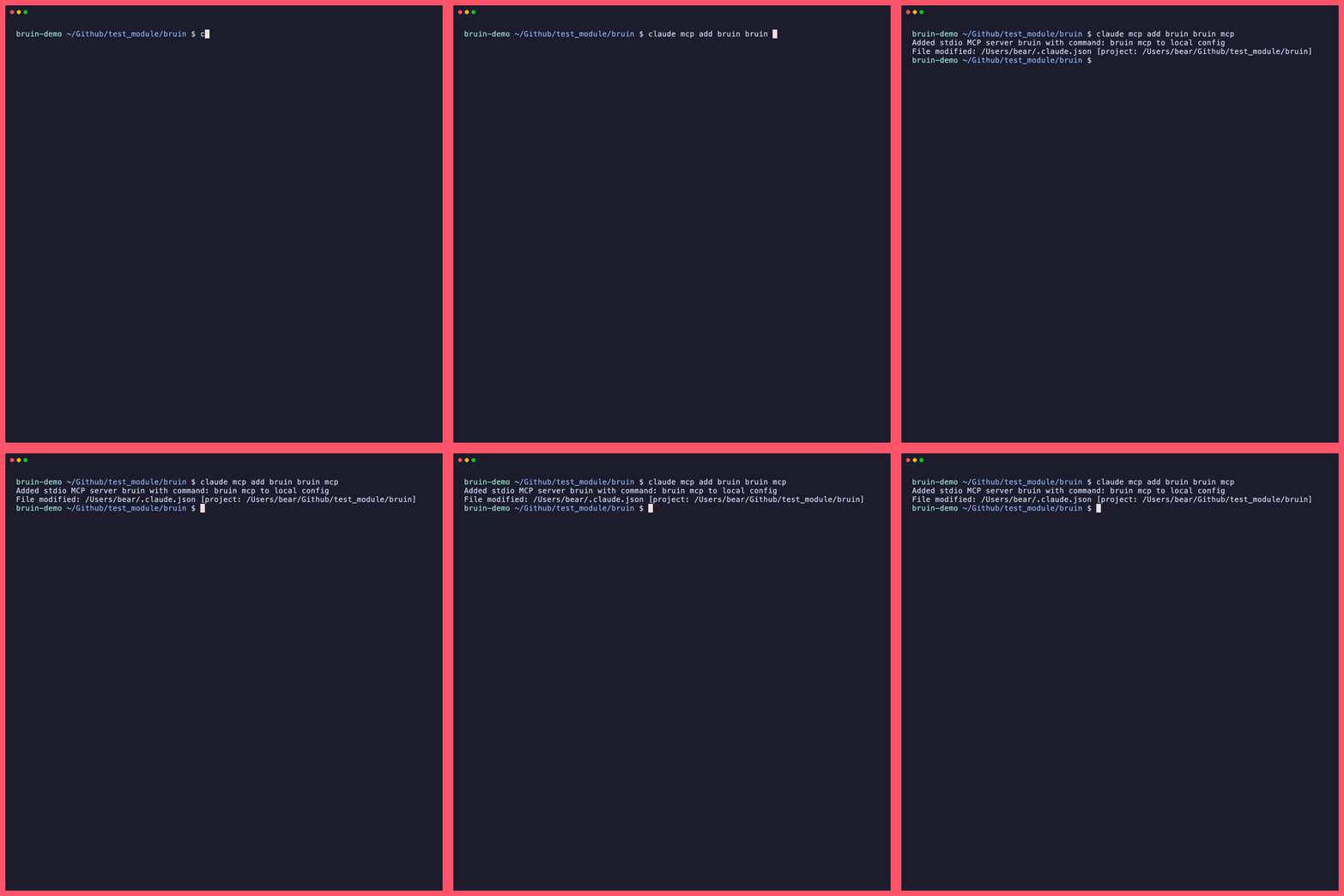
What you'll do
Add Bruin as an MCP server in your AI coding tool. Pick the tab that matches the tool you're using.
Why this step matters
You've built a rich data context — table schemas, column descriptions, quality checks. But that context is sitting in files on your machine. Your AI coding tool doesn't know it exists yet.
MCP (Model Context Protocol) is the bridge. It's a lightweight protocol that lets AI tools call external commands — in this case, Bruin CLI. Once you configure MCP, your AI agent can:
- Read your asset files to understand table structures and business context
- Run
bruin queryto execute SQL against your warehouse - Access Bruin documentation to know how to use the CLI correctly
Without MCP, you'd have to manually copy-paste schema info into prompts. With it, the agent has direct, structured access to everything.
Cursor
- Open Cursor Settings (Cmd/Ctrl + ,)
- Navigate to MCP & Integrations
- Click Add Custom MCP
- Add the following configuration:
{
  "mcpServers": {
    "bruin": {
      "command": "bruin",
      "args": ["mcp"]
    }
  }
}
- Restart Cursor
To verify it's working, open the AI chat and ask: "What connections are available in this Bruin project?" — the agent should list the connection you configured in Step 2.
What just happened
Your AI coding tool now has a live connection to Bruin CLI. When the agent needs to understand your data or run a query, it calls Bruin through MCP rather than guessing. This means the agent works with your actual schema, your actual data, and your actual business context — not hallucinated table names.