Build Your Data Context
Import your database schema and enrich it with AI-generated descriptions, quality checks, and tags — so the agent actually understands your data.
What you'll do
- Import your database tables as Bruin asset files
- Enhance those assets with AI-generated metadata
Why this step matters
An AI agent with access to a database but no context about what's in it will produce mediocre results. It'll guess that cust_id is a customer ID (probably right) but won't know that gmv stands for Gross Merchandise Value, that status = 3 means "refunded," or that timestamps are stored in UTC but your business runs on EST.
This step fixes that. You'll import your database schema into Bruin — turning each table into a local asset file with column names and types — and then use AI to enrich those files with meaningful descriptions, data quality checks, and tags. The result is a structured knowledge base that any AI agent can read to understand your data before writing a single query.
This is what separates a useful AI analyst from one that constantly gets things wrong.
Instructions
1. Discover available schemas (optional)
If you already know the name of the schema (or dataset) you want to import, skip ahead to step 2. Otherwise, you can list the available schemas in your database:
BigQuery:
bruin query --connection gcp-default --query "SELECT schema_name FROM INFORMATION_SCHEMA.SCHEMATA"
Postgres / Redshift:
bruin query --connection postgres-default --query "SELECT schema_name FROM information_schema.schemata WHERE schema_name NOT IN ('pg_catalog', 'information_schema')"
ClickHouse:
bruin query --connection clickhouse-default --query "SHOW DATABASES"
Pick the schema that contains the tables you want to analyze (e.g., stock_market, ecomm, public).
2. Import your database schema
Run the import command, pointing at your pipeline folder (ai-analyst) and the connection you set up in the previous step. Replace <connection-name> with the name you used (e.g. gcp-default, redshift-default, postgres-default, or clickhouse-default), and <schema> with the schema you identified above:
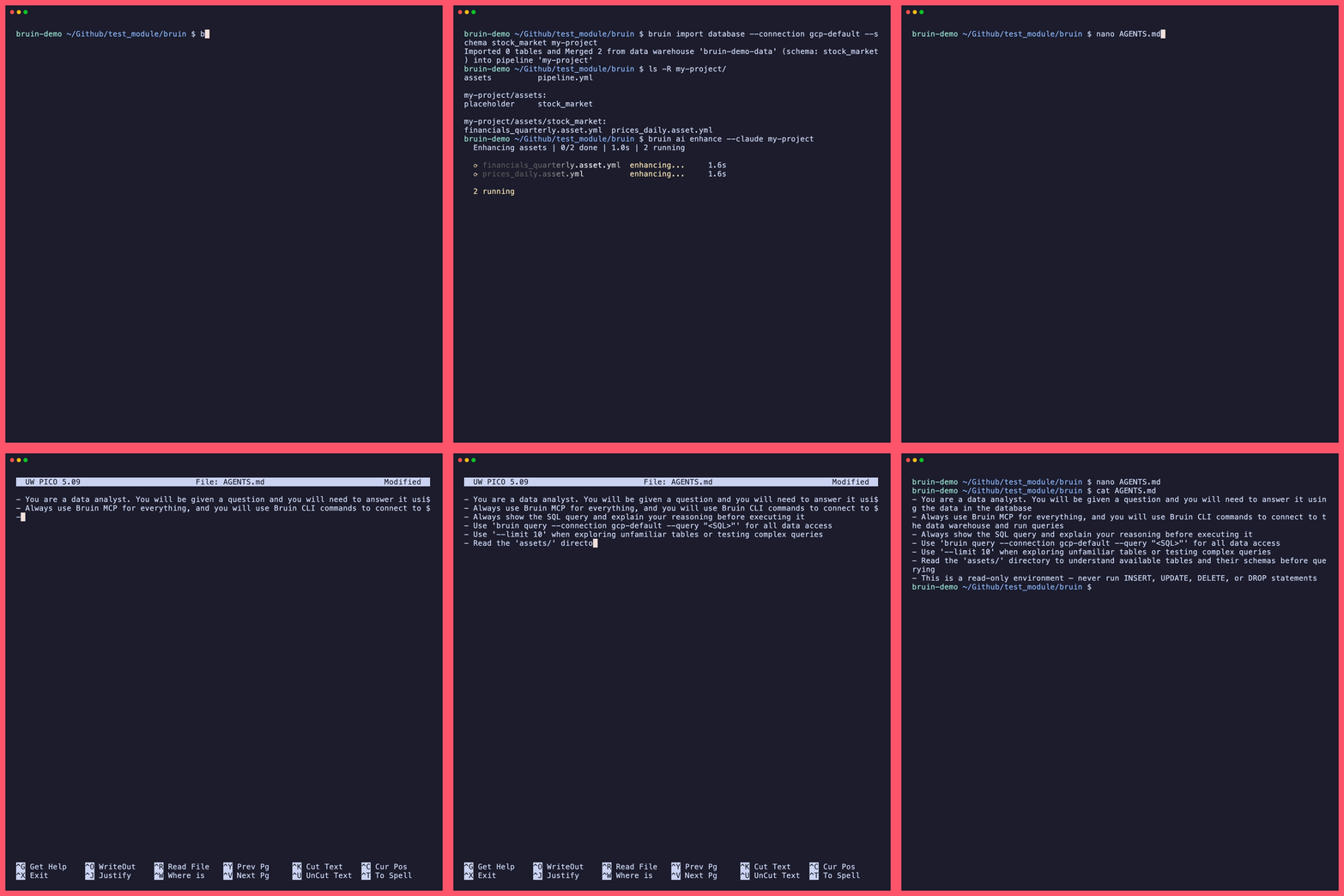
bruin import database --connection <connection-name> --schema <schema> ai-analyst
Note: The last argument is the path to your pipeline folder (
ai-analyst). This is the folder containingpipeline.yml, not the project root where.bruin.ymllives.
Importing multiple schemas: If your data spans multiple schemas, you can import them all at once:
bruin import database --connection <connection-name> --schemas schema1,schema2,schema3 ai-analyst
This creates an .asset.yml file for each table under ai-analyst/assets/<schema>/. Each file contains the table name, type, and column metadata pulled directly from your database.
3. Enhance with AI
Now let the AI fill in what raw schema can't tell you — descriptions, quality checks, and tags:
bruin ai enhance ai-analyst
Important: The command is
bruin ai enhance, notbruin enhance. Don't forget theaisubcommand.
This command connects to your database to gather column statistics (null counts, distinct values, min/max ranges), then uses an AI model to:
- Write descriptions for each table and column based on their names and data patterns
- Add quality checks like
not_nullon primary keys,accepted_valueson status columns, and range checks on numeric fields - Apply tags that group related assets by domain
The AI is conservative — it only adds metadata it's confident about, and existing content is never overwritten. If you've already written descriptions for some columns, they'll stay as-is.
Which AI provider? The command auto-detects which AI CLI you have installed (Claude Code, OpenCode, or Codex) and uses it automatically. If you have multiple installed and want to specify one explicitly, use the --claude, --opencode, or --codex flag:
bruin ai enhance ai-analyst --claude
See the ai enhance docs for all options.
Time estimate: The enhance step can take several minutes depending on how many tables you imported. For 15-20 tables, expect 3-5 minutes. For larger schemas (50+ tables), it may take 10+ minutes.
4. Review what was generated
Open one of the asset files to see what Bruin created:
cat ai-analyst/assets/<schema>/<table>.asset.yml
You'll see something like:
type: pg.source
description: "Customer orders with purchase details and fulfillment status"
tags:
  - ecommerce
  - orders
columns:
  - name: order_id
    type: INTEGER
    description: "Unique identifier for the order"
    checks:
      - name: not_null
      - name: unique
  - name: status
    type: VARCHAR
    description: "Current fulfillment status"
    checks:
      - name: accepted_values
        value: ["pending", "shipped", "delivered", "refunded"]
This is the context your AI agent will read. The better these descriptions are, the better the agent's queries will be. Feel free to edit any file — add business context, fix descriptions, or tighten quality checks. These are your files, version-controlled and human-readable.
Watch out for incorrect
uniquechecks. The AI sometimes adds auniquecheck to columns that look like identifiers (e.g.,ticker,customer_id) but aren't unique in the table. For example, in a quarterly financials table,tickerappears once per quarter — it's not unique per row. Always review generated checks against how the data actually works. Remove anyuniqueconstraint that doesn't apply.
5. Verify your work
Check that your assets were created correctly:
ls ai-analyst/assets/
You should see folders for each schema you imported, with .asset.yml files inside each.
Troubleshooting
"bruin enhance" not found / "unknown command"
The correct command is bruin ai enhance (with ai as a subcommand), not bruin enhance. Run:
bruin ai enhance ai-analyst
"No AI CLI detected"
The bruin ai enhance command requires an AI CLI to be installed. Install one of:
- Claude Code:
curl -fsSL https://claude.ai/install.sh | bash(macOS/Linux) orirm https://claude.ai/install.ps1 | iex(Windows PowerShell) - OpenCode: See opencode.ai for installation
- Codex: See OpenAI Codex docs
Command times out or hangs
For large schemas (50+ tables), the enhance step can take 10+ minutes. If it seems stuck:
- Check your internet connection
- Try enhancing a smaller subset first using
--schemato limit which assets are processed - If the AI generates incomplete metadata, you can always re-run the command — it won't overwrite existing descriptions
AI generates incorrect or low-quality descriptions
The AI makes educated guesses based on column names and data patterns. If a description is wrong:
- Edit the
.asset.ymlfile directly — these are your files - Add a clarification to your
AGENTS.md(Step 5) so the AI agent knows the correct interpretation - Consider adding a glossary entry for commonly misunderstood terms
Import command fails with "permission denied" or "access denied"
Your database connection doesn't have sufficient permissions. You need at least SELECT access on the target schema and its tables. For BigQuery, ensure your account has BigQuery Data Viewer role.
What just happened
Your project now contains asset files that map every table and column in your database, enriched with AI-generated descriptions and quality checks. This metadata is the foundation for everything that comes next — it's what turns a generic AI into one that actually understands your data.