Asset health and manual entries
Inspect data coverage and record outcomes for failed or missing external dependencies directly in Cloud.
See which data intervals need attention with Asset Health in Bruin Cloud. If you have already fixed the upstream data, add a manual success entry from the interface to help unblock a downstream asset.
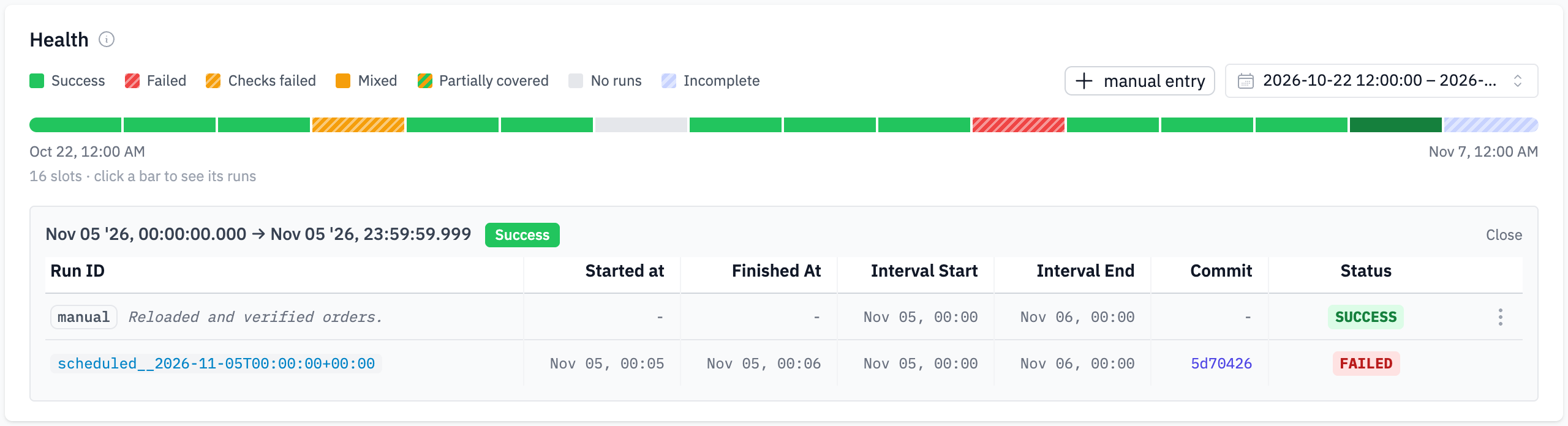
See asset health over time
Open an asset in a scheduled pipeline and find Health on its Overview tab. The timeline shows successful intervals, failures, failed checks, and gaps in coverage. Select a bar to inspect its runs, or change the date range to investigate a particular period.
Add a manual entry for an external dependency
- Open the affected asset run and find External Dependencies.
- Select the failed or missing interval on the upstream asset's timeline.
- Click Add manual entry and check the Start Date and End Date, shown in UTC.
- Choose Success once you have verified that the upstream data is ready, or Failure to record a failed outcome. Add an optional note explaining what happened.
- Click Save manual entry.
You can also select an interval in an asset's Health section and click manual entry. Entries appear alongside the run history and can be edited or deleted later. These actions require permission to mark asset instances.
For dependencies that require full interval coverage, successful manual entries count toward that coverage. A manual entry records an outcome; it does not execute the asset or repair the data. If the downstream run has already timed out, rerun its failed prerequisite after resolving the dependency.