Customize your dashboard layout
Resize widgets and filters, and rearrange your dashboard.
Adjust your dashboard layout to fit your needs. In Edit mode, resize widgets and filters directly on the canvas.
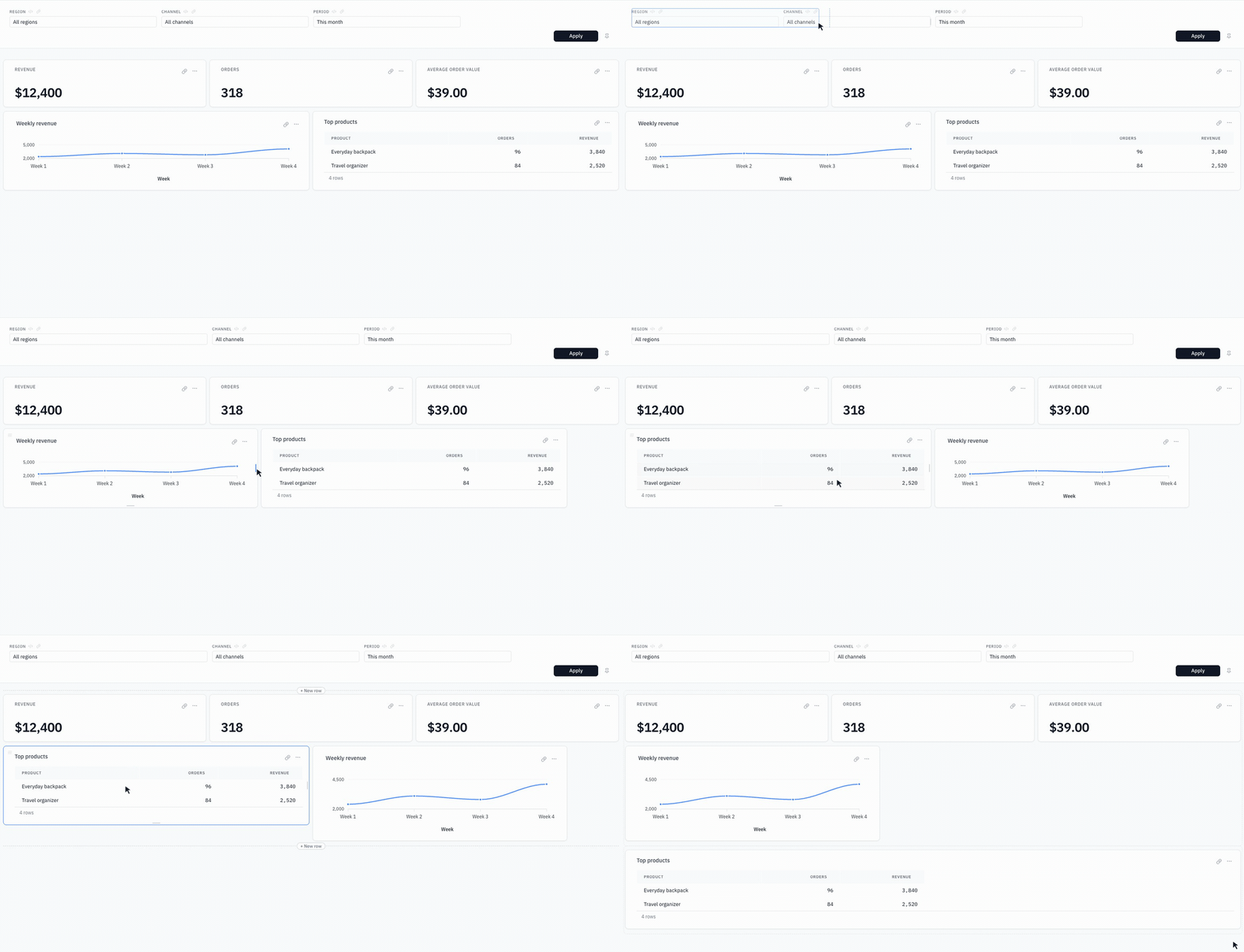
- Resize: Drag the right edge of a widget or filter to change its width. Drag a widget's bottom edge to change its height.
- Rearrange: Drag a widget's title or handle, or a filter's label, to change its order. Widgets automatically fill available space within their group.
- Create a new group: Drop a widget between groups to give it a full-width row.
- Undo and redo: Use Ctrl/Cmd + Z and Ctrl/Cmd + Shift + Z while editing.
Click Save to keep your changes, then Publish when you're ready to share the updated layout.