Snowflake Per-User OAuth
Connect Snowflake to Bruin with per-user OAuth: create a Snowflake security integration once, register it in Bruin, and let every user query as themselves. No shared service credential — each query runs with that user's own role and grants.
Audience: Snowflake account admins setting up the security integration, and end users connecting their accounts.
Prerequisites
ACCOUNTADMINrole (or a role with the globalCREATE INTEGRATIONprivilege) to create the security integration.- A Bruin Cloud workspace with access to AI Agent Settings.
Set up the security integration (admin, one-time)
Snowflake doesn't have a UI wizard for this — the integration is created with SQL, in a Snowsight worksheet or any SQL client connected to your account.
1. Create the security integration
Run the following, replacing the integration name if you like:
CREATE SECURITY INTEGRATION bruin_oauth
  TYPE = OAUTH                                                 -- "Creates a security interface between Snowflake and a client that supports OAuth."
  OAUTH_CLIENT = CUSTOM                                        -- "Creates an OAuth interface between Snowflake and a custom client" (vs. a supported partner app like Tableau or Looker).
  OAUTH_CLIENT_TYPE = 'CONFIDENTIAL'                            -- "Specifies the type of client being registered." Confidential clients can hold a client secret; use PUBLIC only for clients that can't.
  OAUTH_REDIRECT_URI = 'https://cloud.getbruin.com/auth/snowflake/callback' -- "After a user is authenticated, the web browser is redirected to this URI." Must match Bruin's fixed callback exactly.
  OAUTH_ISSUE_REFRESH_TOKENS = TRUE                             -- "Specifies whether to allow the client to exchange a refresh token for an access token when the current access token has expired." Default TRUE.
  OAUTH_REFRESH_TOKEN_VALIDITY = 7776000                        -- "Specifies how long refresh tokens should be valid (in seconds)." 7776000s = 90 days, the maximum Snowflake allows.
  ENABLED = TRUE;                                               -- "Specifies whether to initiate operation of the integration or suspend it." Default TRUE.
The redirect URI must match exactly — Bruin's callback URL is fixed and shared across every account.
2. Retrieve the client ID and secret
SELECT SYSTEM$SHOW_OAUTH_CLIENT_SECRETS('bruin_oauth');This returns a JSON object with OAUTH_CLIENT_ID and OAUTH_CLIENT_SECRET (a second, equally valid secret is included for rotation — either works). Copy both; the secret can't be viewed again later.
3. Find your account identifier
SELECT CURRENT_ORGANIZATION_NAME() || '-' || CURRENT_ACCOUNT_NAME() AS account_identifier;Alternatively, click the account selector in the bottom-left corner of Snowsight — it shows your account name directly, with a View Account Details link for more.
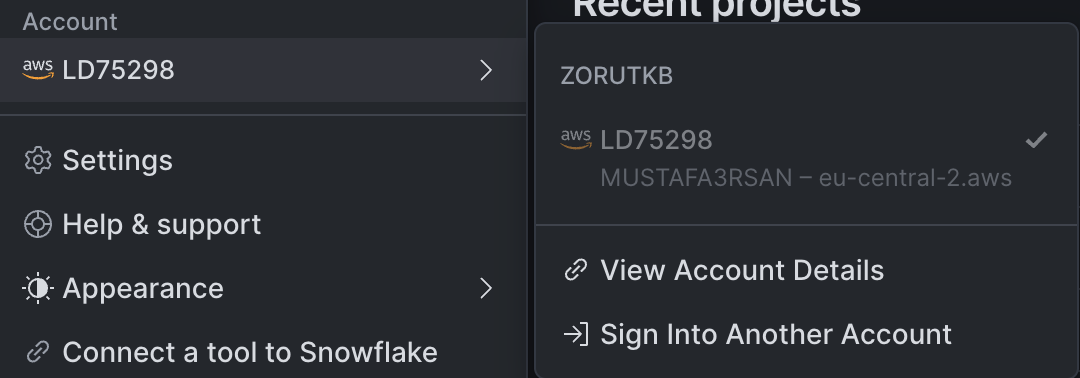
This is the value Bruin needs — it's the same string that resolves as https://<this>.snowflakecomputing.com.
4. Register the app in Bruin
In Bruin, open your AI Agent Settings and add a Snowflake app with the account identifier, Client ID, and Client Secret. The app is account-level: one app covers the whole Snowflake account.
5. Add a Snowflake connection to your agent
In your agent's Connection Set, click Add Connection and choose Snowflake (per-user OAuth) as the connection type. Name the connection, pick the app you registered, and optionally set a default warehouse, database, and schema.
Connect your account (each user)
Setup is done — from here, each user links their own Snowflake identity once.
Connect in chat
When you open a chat with an agent that uses a per-user OAuth connection, a banner asks you to connect. Click Connect to start the Snowflake OAuth flow and authorize Bruin. Once authorized, the app shows as Connected — you can Reconnect at any time or Disconnect to revoke it on Bruin's side.
Scheduled agents
Scheduled agents run with their owner's Snowflake connection. If the owner hasn't connected yet, the agent is paused with a warning banner — click Connect to authorize, and the schedule resumes automatically.
Dashboards
Dashboards built on a per-user OAuth connection load data as the viewer. A viewer who hasn't connected Snowflake sees a Connect Snowflake banner instead of someone else's data.
Notes and limitations
- Role: the minted token uses your Snowflake default role. Bruin doesn't currently support picking a different role per connection — Snowflake ties a role to the OAuth token at the moment you authorize, so switching roles means reconnecting, not a per-query setting.
ACCOUNTADMINcan't authorize:ACCOUNTADMIN,SECURITYADMIN,GLOBALORGADMIN, andORGADMINare always in the security integration'sBLOCKED_ROLES_LISTand can't be removed from it. If your default role is one of them, authorization fails — switch your default role first:sqlALTER USER <username> SET DEFAULT_ROLE = <non_admin_role>;- Reconnecting after recreating the integration: if you drop and recreate a security integration with the same name, previously authorized users may skip the consent screen on their next connect (Snowflake remembers a "delegated authorization" per user/role/integration). To force a fresh consent, revoke it first:sql
ALTER USER <username> REMOVE DELEGATED AUTHORIZATION OF ROLE <role> FROM SECURITY INTEGRATION bruin_oauth;
For the full reference on Snowflake's side of this setup, see Snowflake's own Configure Snowflake OAuth for custom clients documentation.