Databricks Per-User OAuth
Connect Databricks to Bruin with per-user OAuth: create a Databricks OAuth app once, register it in Bruin, and let every user query as themselves. No shared service credential — each query runs with that user's own Unity Catalog grants.
Audience: Databricks account admins setting up the OAuth app, and end users connecting their accounts.
Prerequisites
- Databricks account admin permissions (to create the OAuth app connection).
- A Bruin Cloud workspace with access to AI Agent Settings.
Set up the OAuth app (admin, one-time)
1. Open the Databricks account console
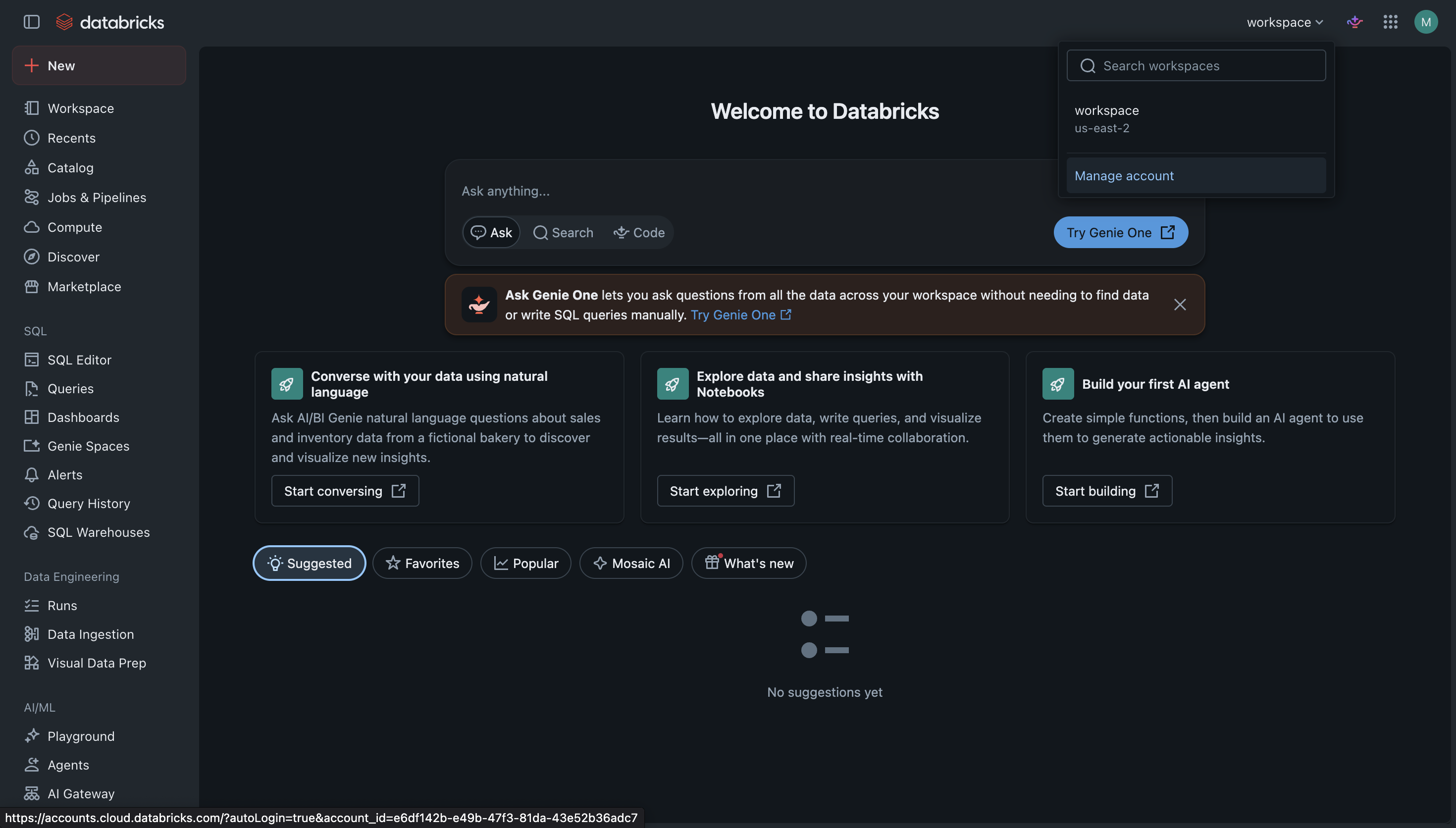
In your Databricks workspace, click the workspace switcher in the top-right corner and select Manage account. OAuth apps are created at the account level, not inside a workspace.
2. Go to account Settings
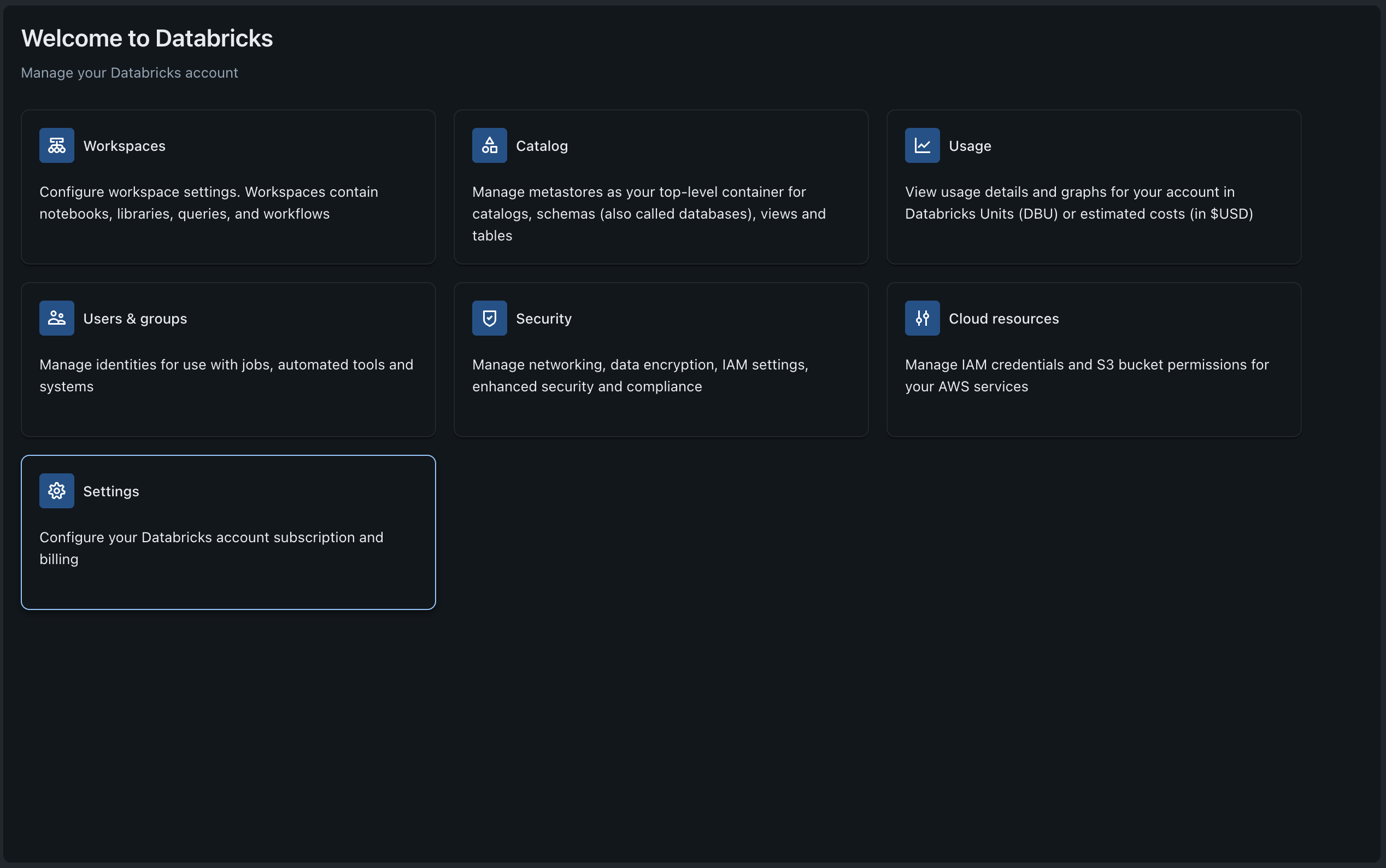
The account console opens at accounts.cloud.databricks.com. Click the Settings card.
3. Create the OAuth app connection
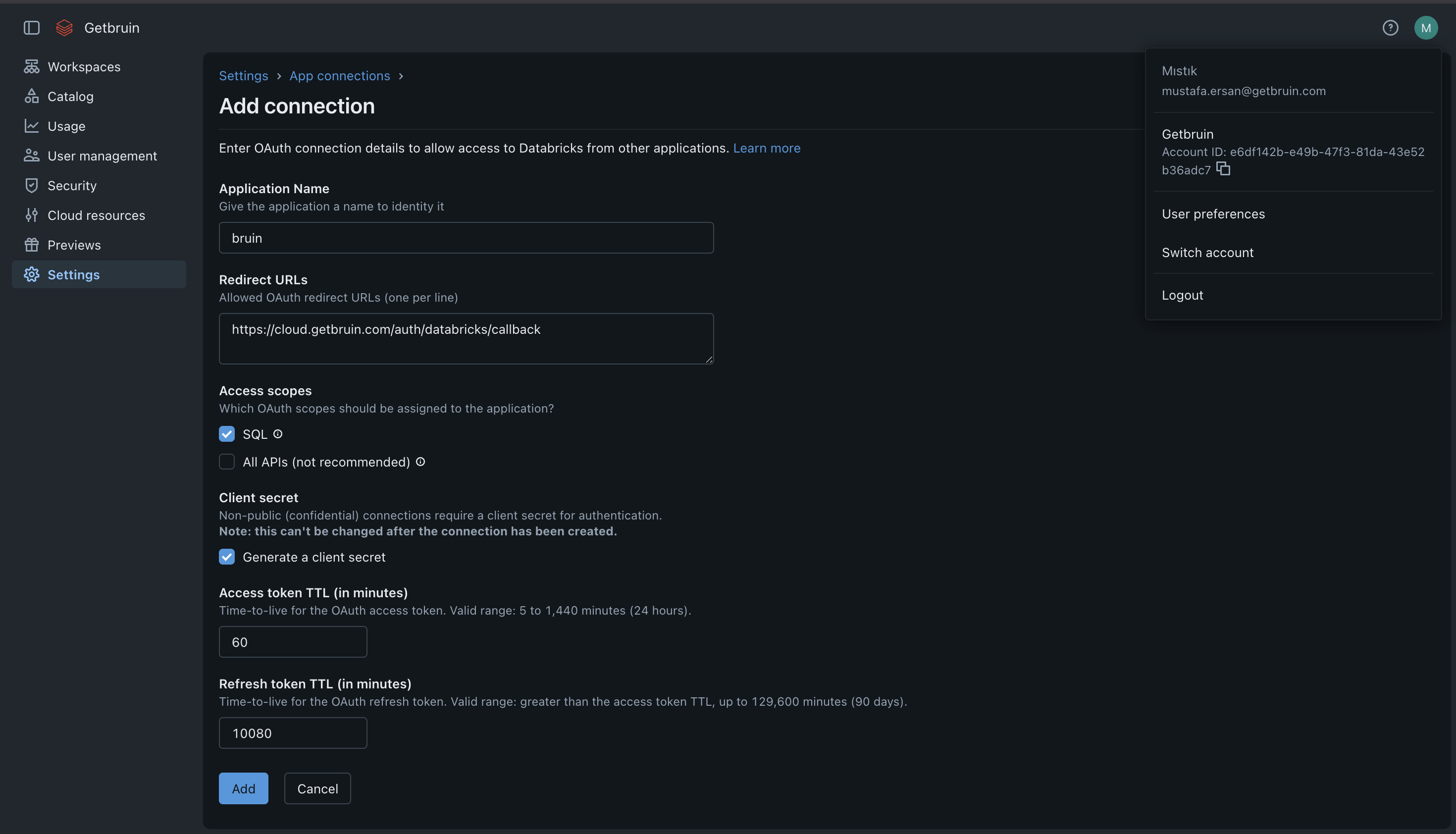
Under Settings → App connections, click Add connection:
- Application Name: any name, e.g.
bruin. - Redirect URLs:
https://cloud.getbruin.com/auth/databricks/callback - Access scopes: check SQL. "All APIs" is not needed.
- Client secret: enable Generate a client secret.
- Leave the access/refresh token TTLs at their defaults.
Click Add, then copy the Client ID and Client Secret — the secret cannot be viewed again. Also grab your Account ID from the avatar menu in the top-right.
4. Register the app in Bruin
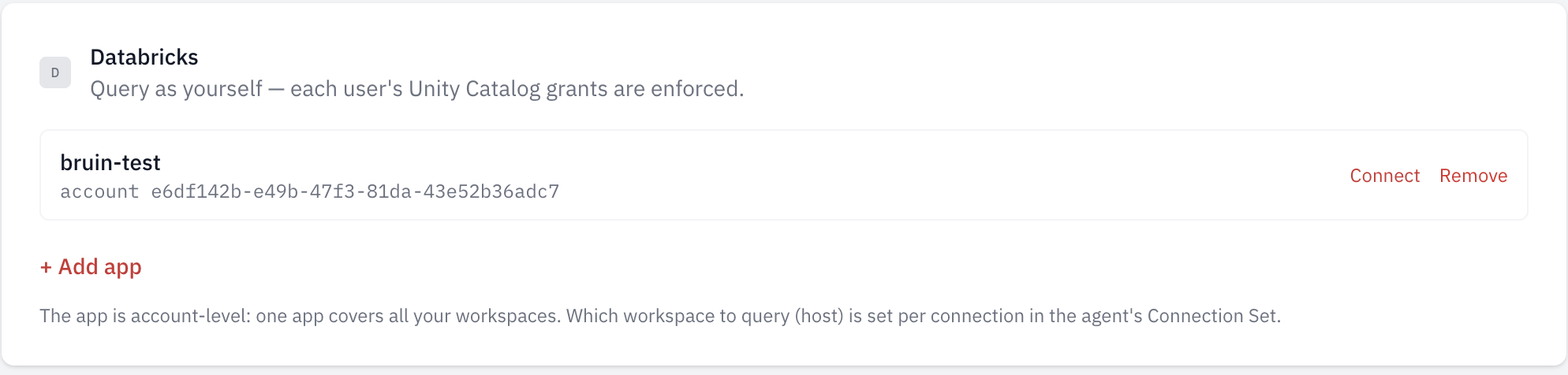
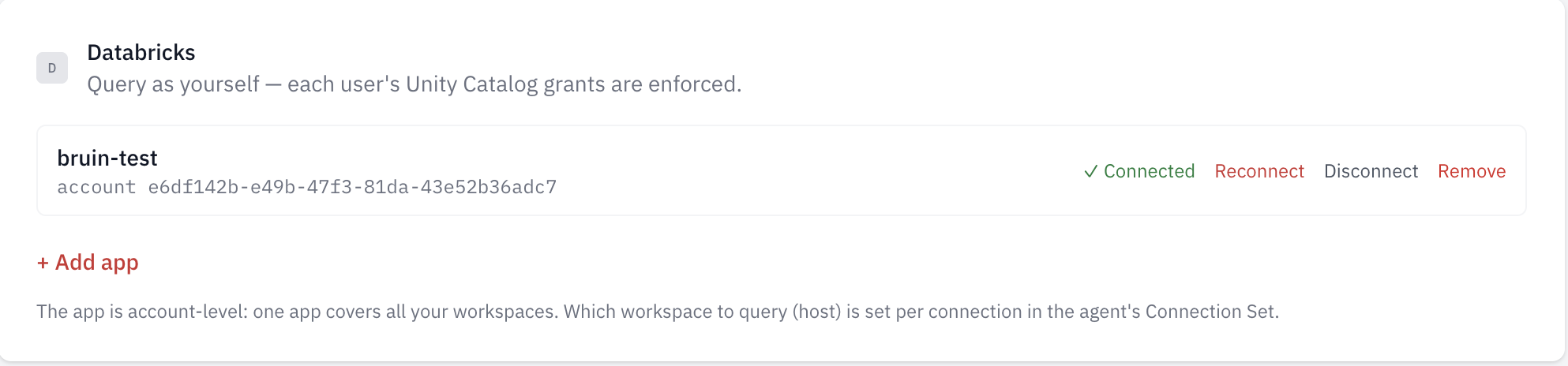
In Bruin, open your AI Agent Settings and add a Databricks app with the Account ID, Client ID, and Client Secret. The app is account-level: one app covers all your Databricks workspaces.
5. Copy your workspace URL
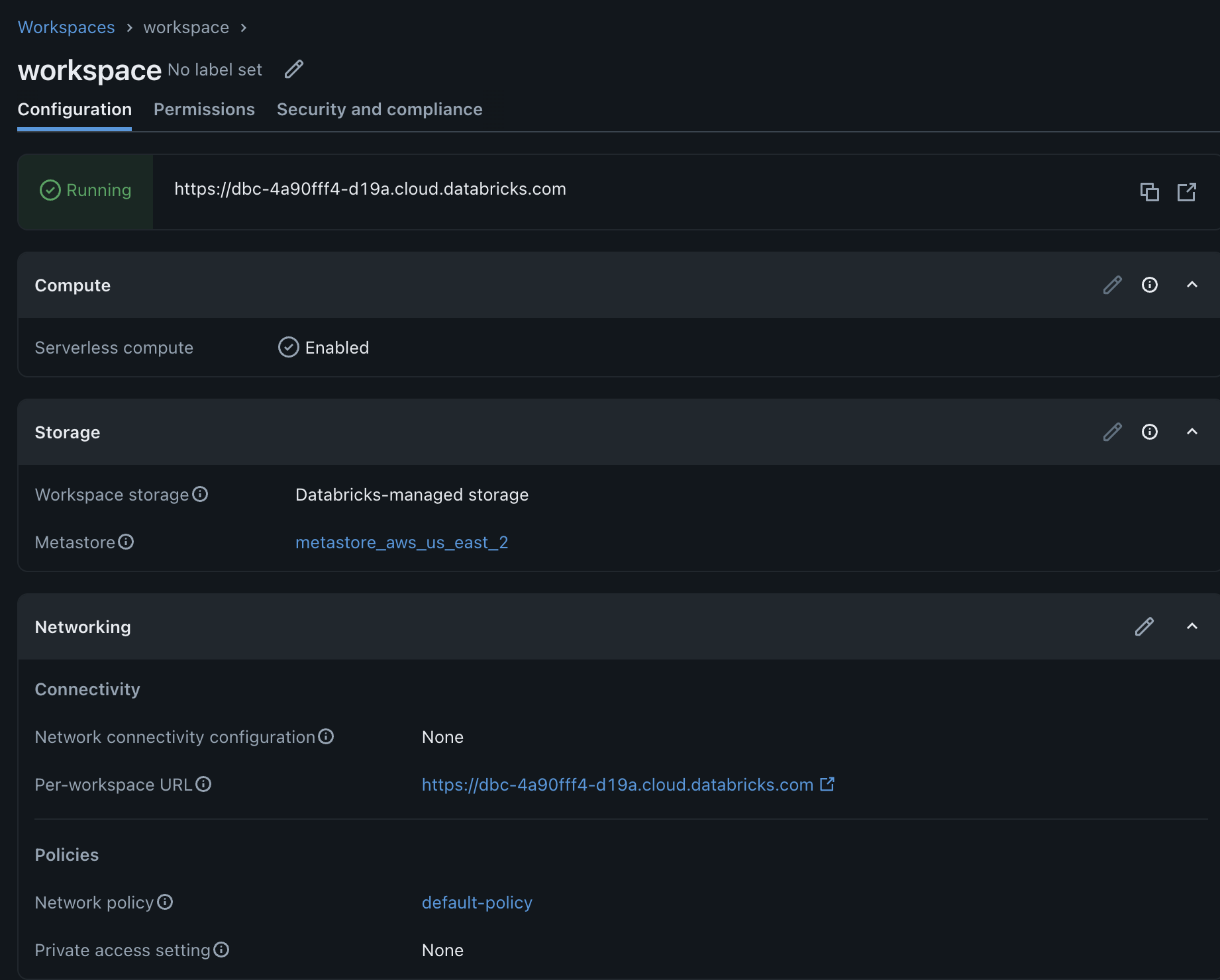
Back in the Databricks account console, open Workspaces and select the workspace you want to query. Copy its per-workspace URL (it looks like https://dbc-xxxx.cloud.databricks.com). Which workspace to query is set per connection.
6. Add a Databricks connection to your agent
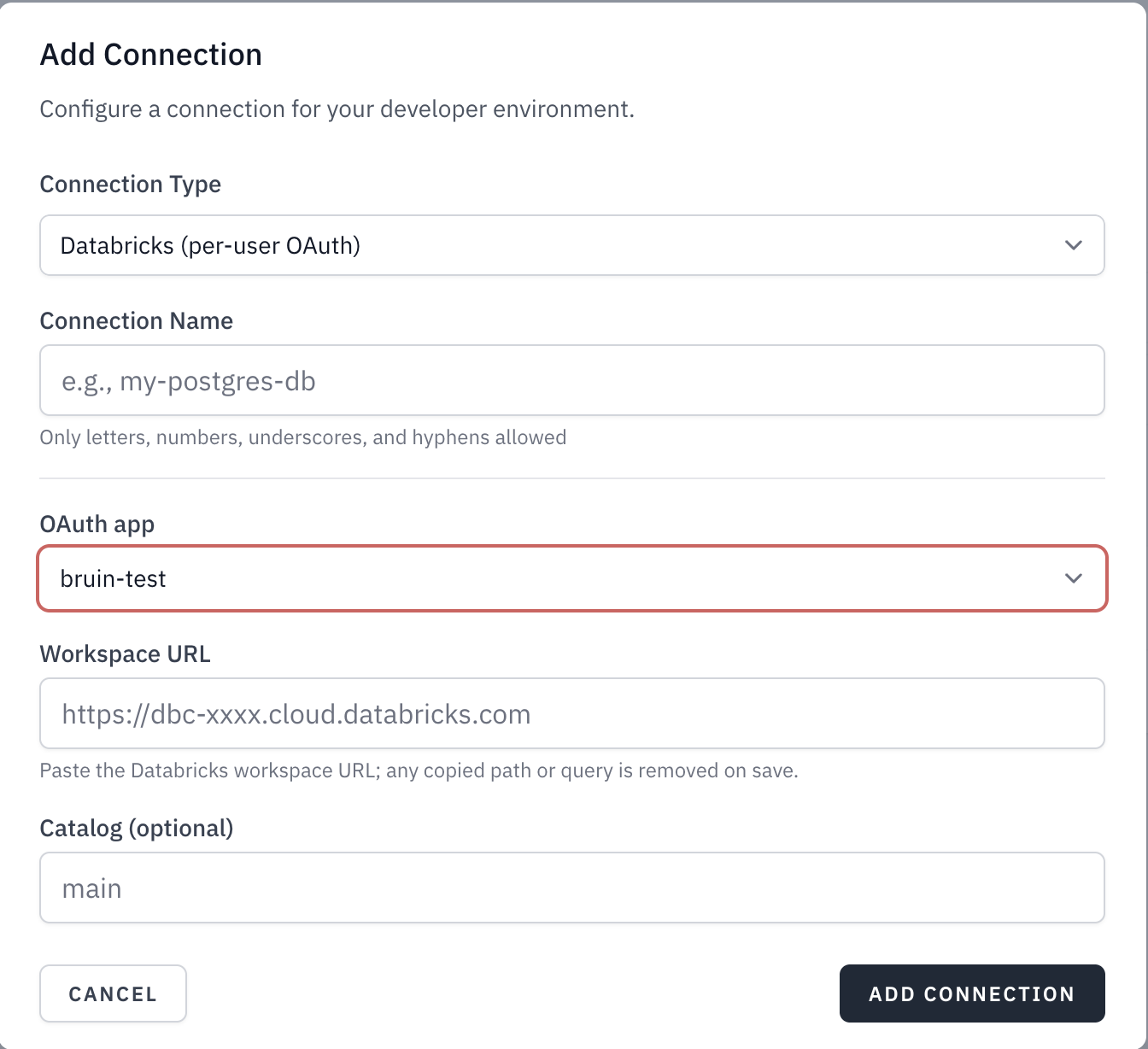
In your agent's Connection Set, click Add Connection and choose Databricks (per-user OAuth) as the connection type. Name the connection, pick the OAuth app you registered, paste the workspace URL, and optionally set a default catalog.
Connect your account (each user)
Setup is done — from here, each user links their own Databricks identity once.
Connect in chat
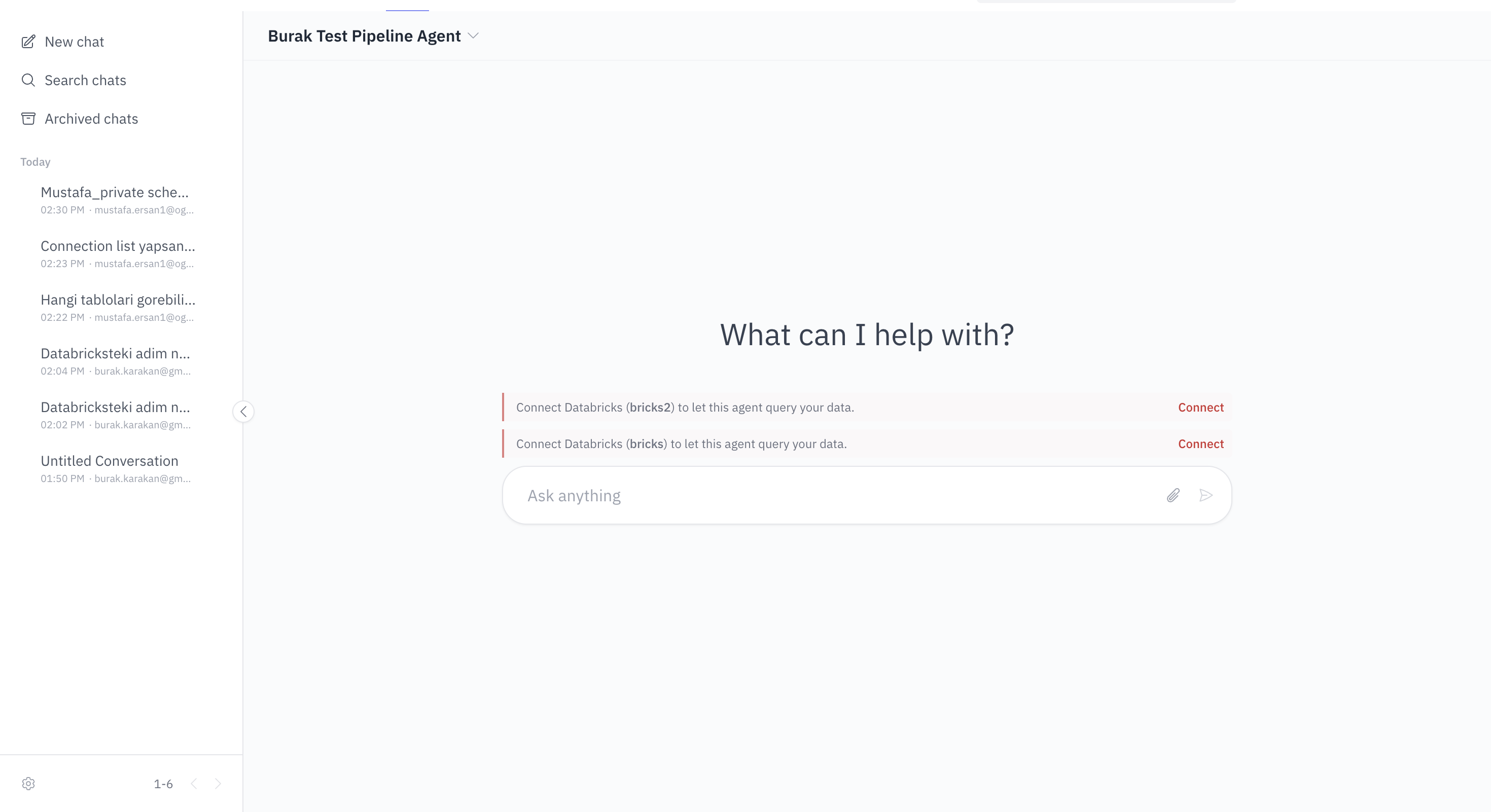
When you open a chat with an agent that uses a per-user OAuth connection, a banner asks you to connect. Click Connect to start the Databricks OAuth flow and authorize Bruin.
After authorizing, the app shows as Connected. You can Reconnect if your token expires or Disconnect at any time.
Connect from Slack
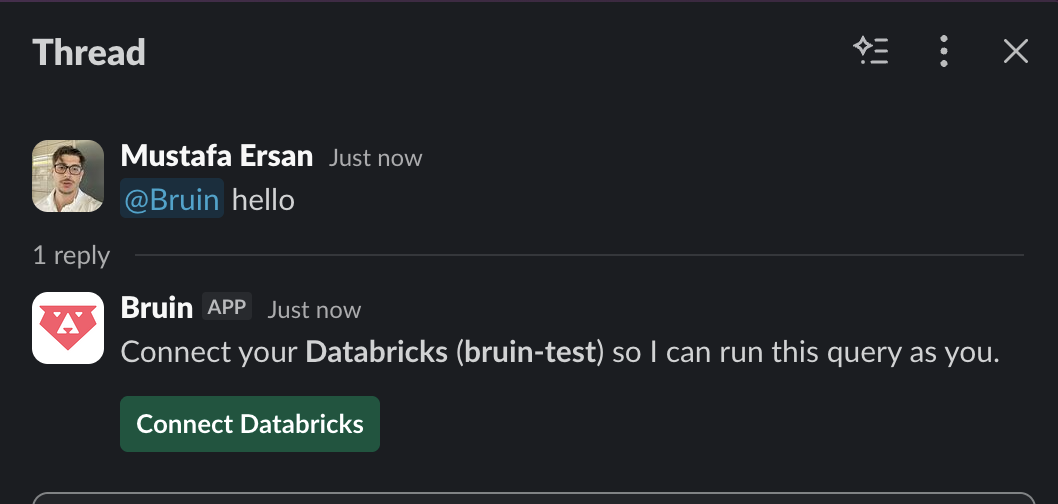
The same flow works in Slack. The first time you mention the agent in a channel backed by a per-user OAuth connection, it replies with a Connect Databricks button.
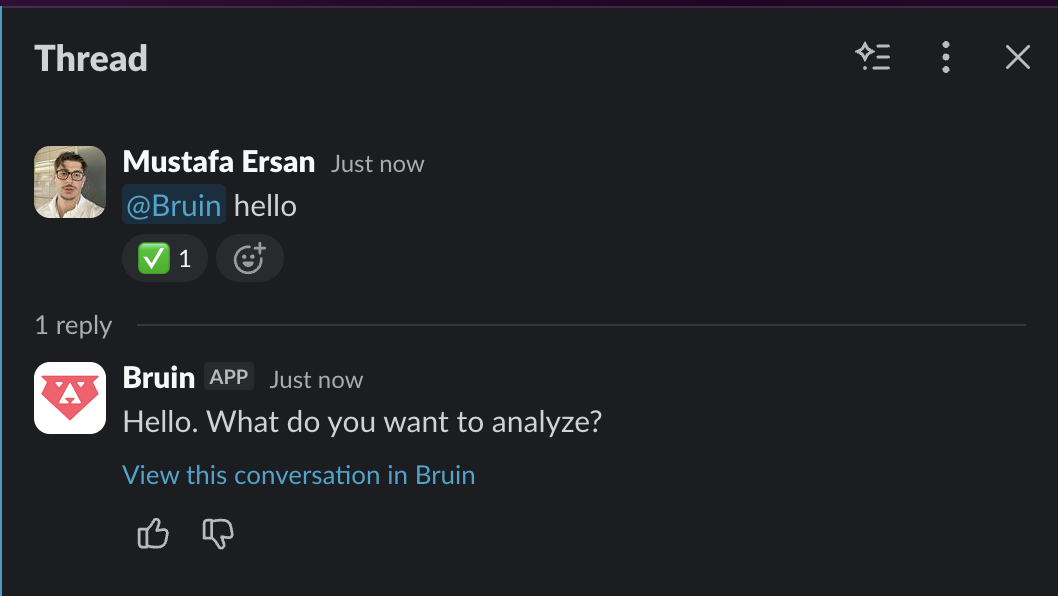
Once connected, just mention the agent and ask — queries run against Databricks as you, and the answer lands in the thread.
Scheduled agents
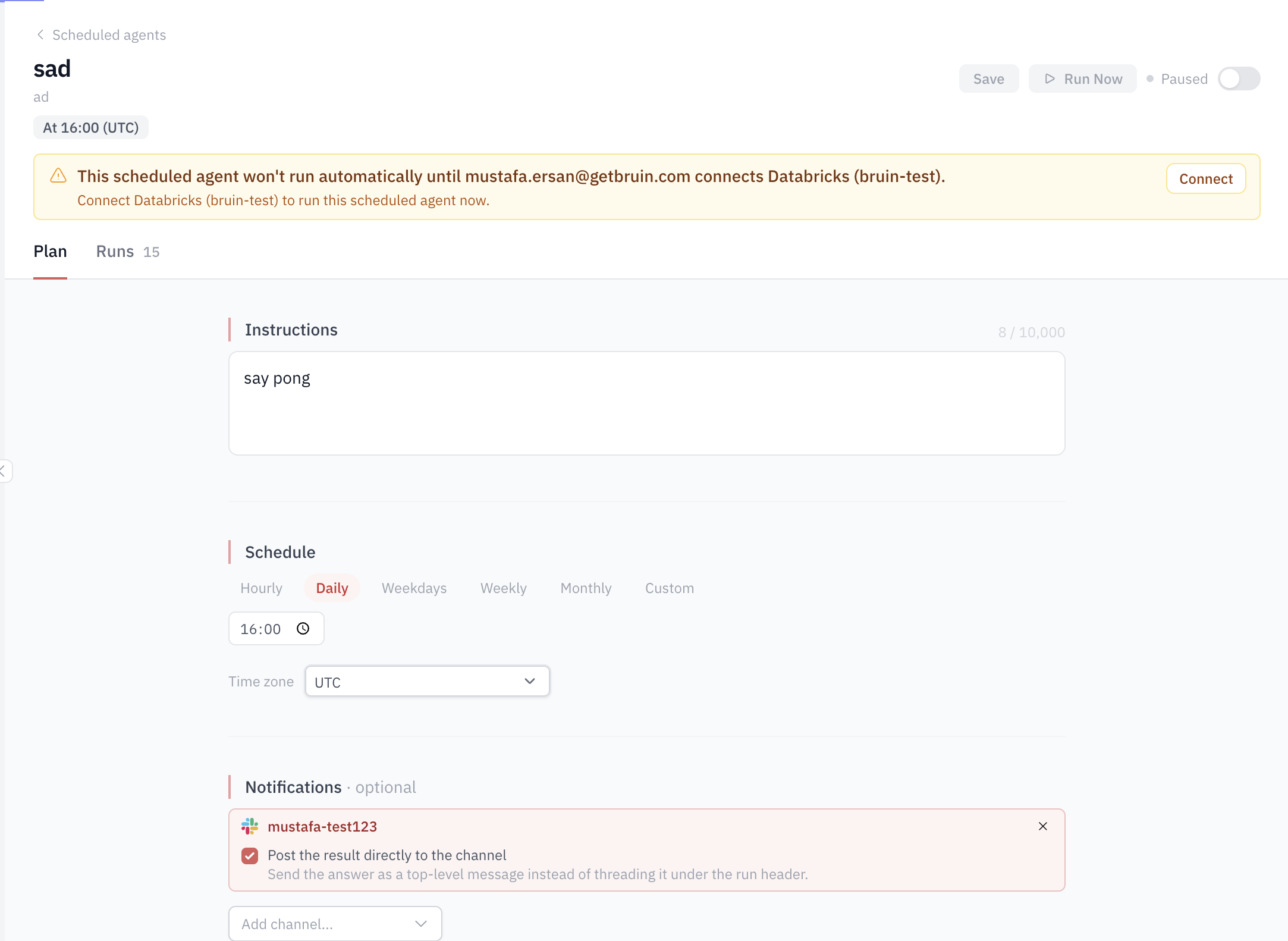
Scheduled agents run with their owner's Databricks connection. If the owner hasn't connected yet, the agent is paused and shows a warning banner — click Connect to authorize, and the schedule resumes automatically.
Dashboards
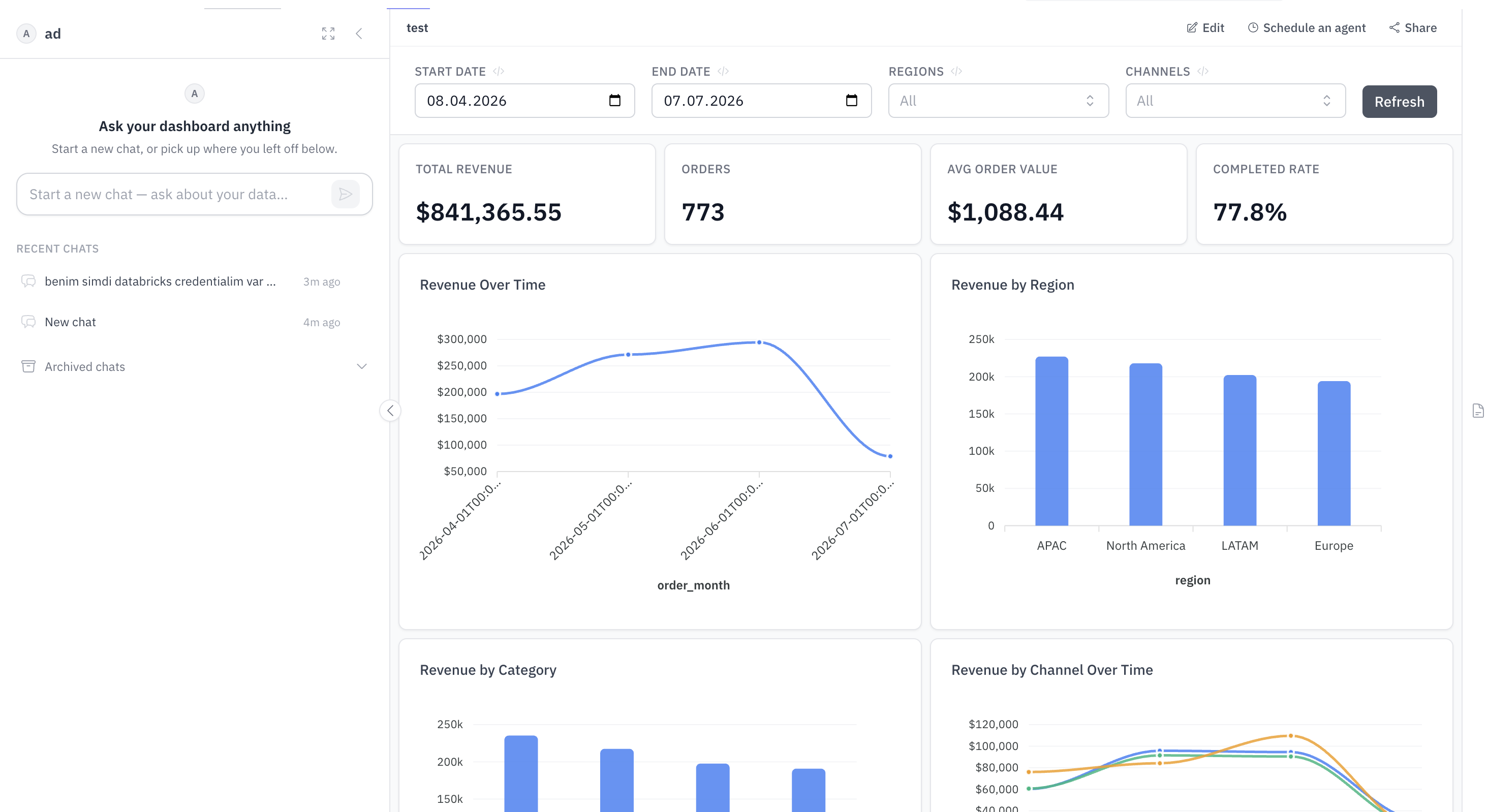
Dashboards built on a per-user OAuth connection load data as the viewer. A viewer who hasn't connected Databricks sees a Connect Databricks banner instead of someone else's data.
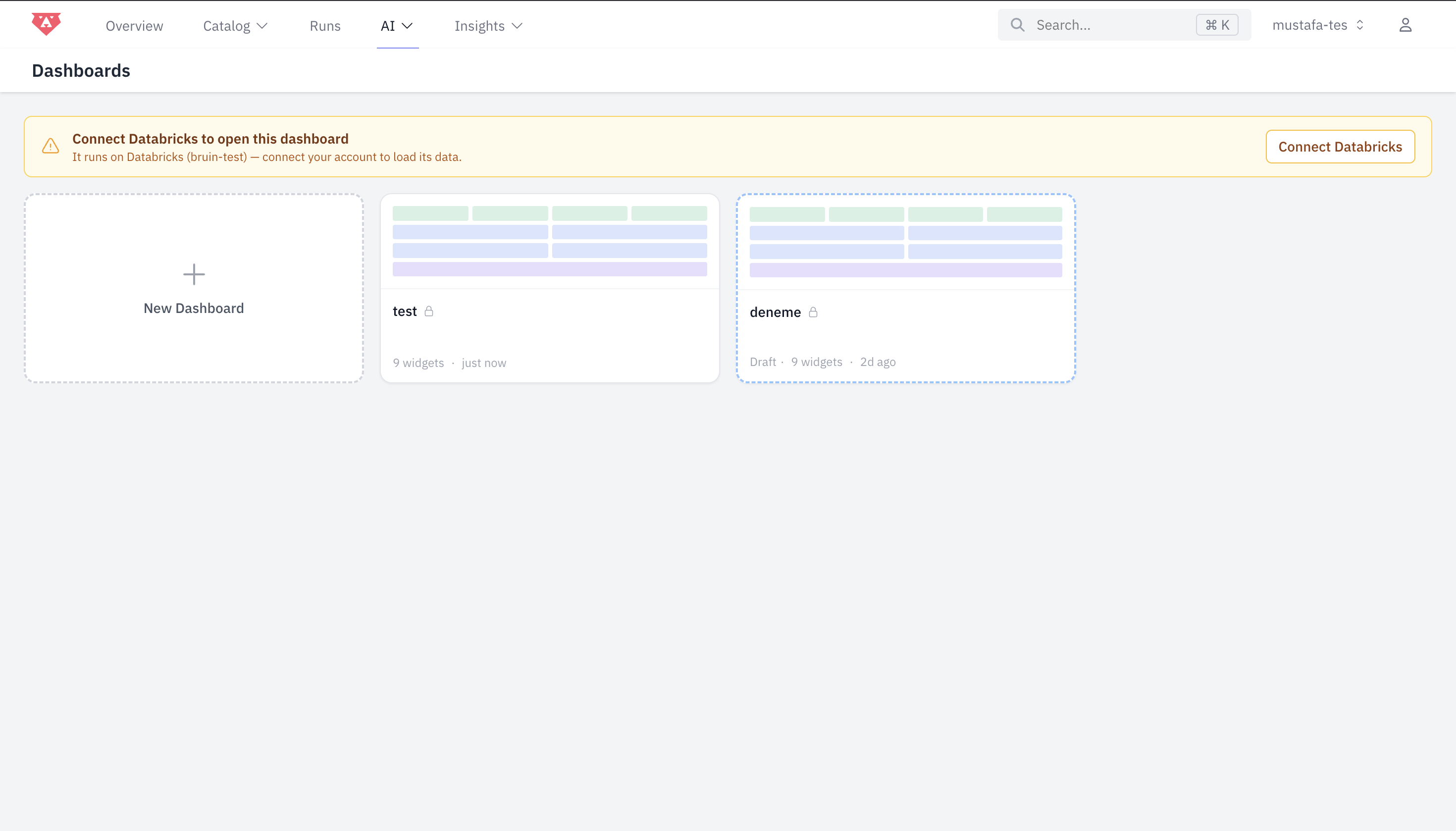
Once connected, the dashboard loads with the viewer's own permissions, and the side chat is available for follow-up questions.